Help center SEO that brings visitors
When customers search for a question, your own answer can show up. Every article in your Helpable help center is easy for search engines to read, and you decide how it looks in the results.
- 14 days free
- No credit card needed
- Old links keep working
Help articles that work for you in search
Helpable takes care of the technical side, so you can focus on writing good answers.
Customers find the answer themselves
People who search for a question can land on your own article, read the answer and carry on. Fewer of them need to email or call you.
Your answers look right in Google
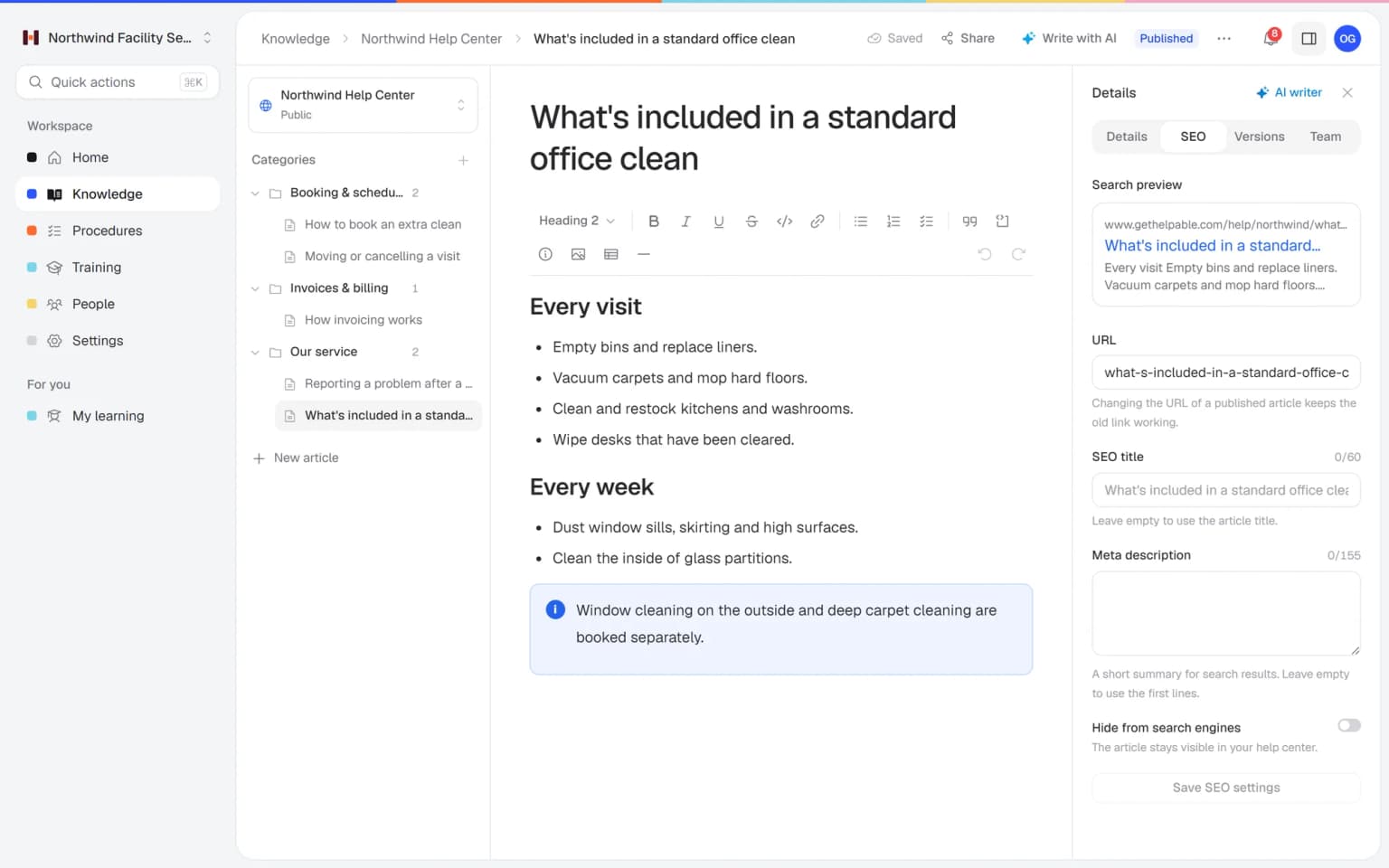
You write the title and the short description people see in the search results, and a preview shows how it will look.
Links that keep working
Rename an article and the old link still leads to it. Links in emails, on your website and in search results stay useful.
No technical work for your team
A sitemap, clean addresses and link previews are built in. You write the answer and Helpable handles the rest.
Shared links look tidy
When someone shares an article, a clear title and description show as the link preview. People know right away what they will read.
You stay in control of what is public
Keep one article out of search engines, or block a whole help center while you are still building it.
Good answers that nobody finds are wasted
Most help centers are written for customers, but set up in a way search engines struggle with.
Messy web addresses
Article links are long strings of letters and numbers that say nothing about the content.
With Helpable Every article gets a short, clean address that you can edit, built from its title.
Search results that say little
Google shows a random piece of text from the page, and nobody clicks.
With Helpable Set a search title and description per article, and check the preview before you publish.
Broken links after a rename
You improve an article title and every link to the old address breaks.
With Helpable Helpable sends visitors from the old address to the new one, so nothing breaks.
Search engines miss new articles
A new article can take a long time to appear, or never shows up.
With Helpable Every help center has its own sitemap, so search engines see each published article.
From a written answer to a result in Google
Three steps. Most of it happens by itself.
Write and publish your article
Write the answer in the editor. Helpable creates a clean web address from the title.
Check how it looks in search
Adjust the search title and description if you like, and see the preview of the Google result.
Let search engines do the rest
Your article appears in the sitemap and search engines get a clear description of it.
- 14 days free
- No credit card needed
Answers that get found, read and keep getting better
Search settings work best with good articles. Combine them with insights, the AI writer and your own branding, and your help center improves week after week.
Write what people search for
Insights show which searches found nothing in your help center. Turn that gap into a draft article with one click, let the AI writer improve it, set a search title and publish. Insights then show its views and helpful votes.
Help center insightsDraft fast, check before it goes live
The AI writer drafts an article from your own files or links. Ask a teammate to review it, check the Google preview and publish when it is right.
AI writerRecognized from the first click
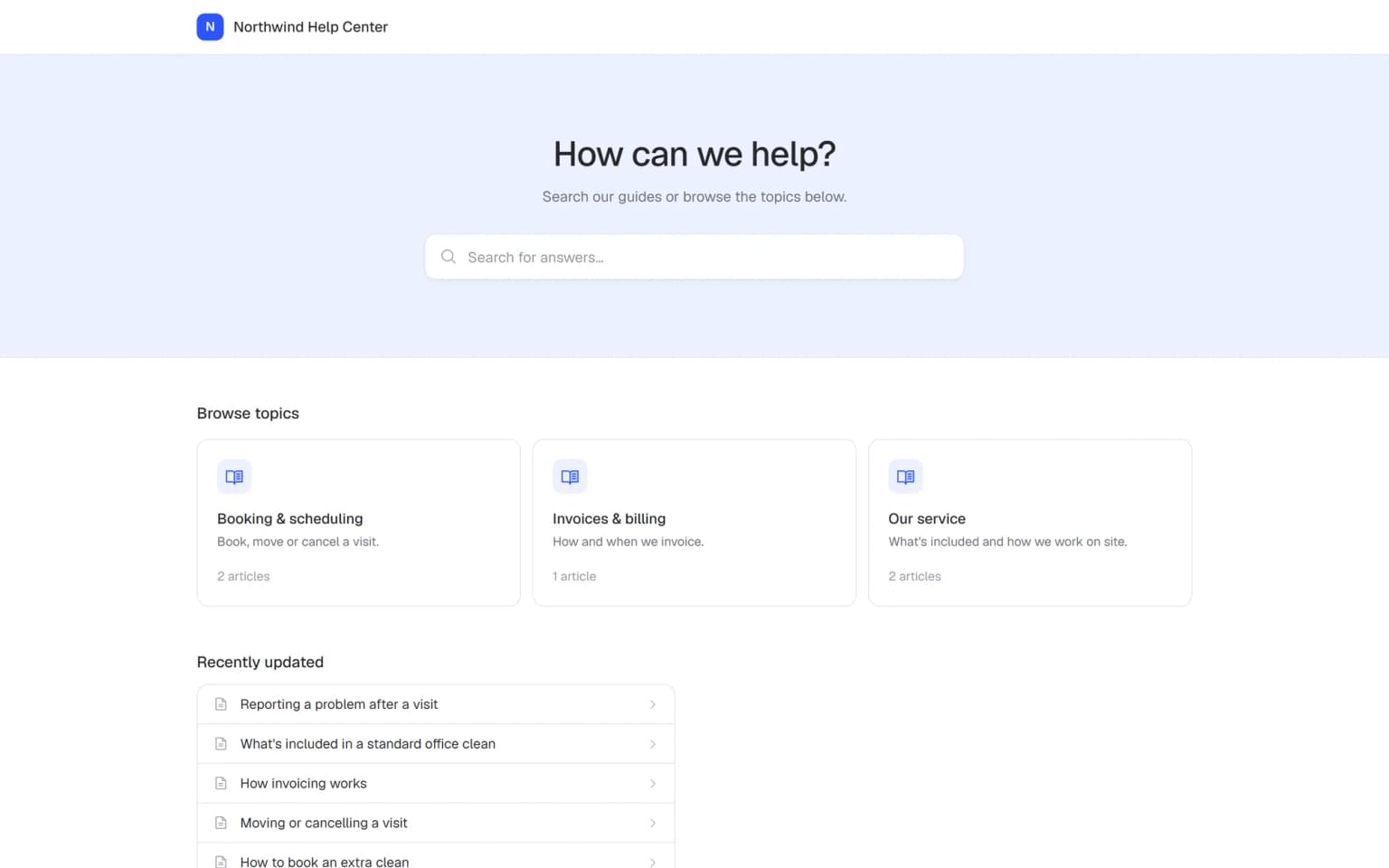
Customers who find an article in Google land on your help center with your logo, color and welcome text, so they trust the answer and read on.
Branding
Get found, get read and keep improving
Search settings bring visitors to your help center. These combinations make sure they find a good answer when they arrive.
- + Help center insightsWrite the articles people already search forInsights show which searches in your help center found nothing. Turn that gap into a draft, set a search title and description, and publish an answer people are looking for.
- + AI writerDraft search-friendly articles from your own filesThe AI writer drafts an article from your files or links in English, Dutch, German, French or Spanish. You check the facts, set the search title and publish.
- + BrandingVisitors from Google recognize your company at onceA click on a search result lands on your help center with your logo, color and welcome text. Customers see that the answer comes from you and read on.
- + Article editorA clear structure that people and search engines can readWrite with headings, steps, images and tables in the editor. Helpable adds a table of contents, a path back to the category and related articles to every public article.
- + Multiple languagesGet found in more than one languageRun a separate public help center per language, each with its own sitemap and search settings per article. Customers abroad find answers in a language they read.
- + Knowledge baseKeep internal pages internal, make the rest findableYour internal knowledge base stays with your team, and your public help center is open to search engines. Block a single article or a whole help center while you are still building it.
Articles that are easy to read for people and for search engines
Every article in your help center has a clear structure: a path back to its category, a table of contents and related articles. That helps customers find their way, and it helps search engines and AI assistants understand what each page is about.
- Neat previews when shared
- A sitemap made for you
- Nothing to set up
Search settings for every article
The basics of help center SEO are built in. You only change what you want to change.
Clean web addresses
Short, readable addresses per article that you can edit yourself.
Search title and description
Choose what people see in Google, with a live preview of the result.
Old links keep working
Rename an article and visitors on the old address are sent to the new one.
A sitemap per help center
Search engines get a list of all your published articles.
Clear article descriptions
Search engines get a clear description of each article and know which address is the main one.
You decide what is found
Keep one article out of search engines, or block a whole help center.
A first version of a training from your own procedures, in minutes
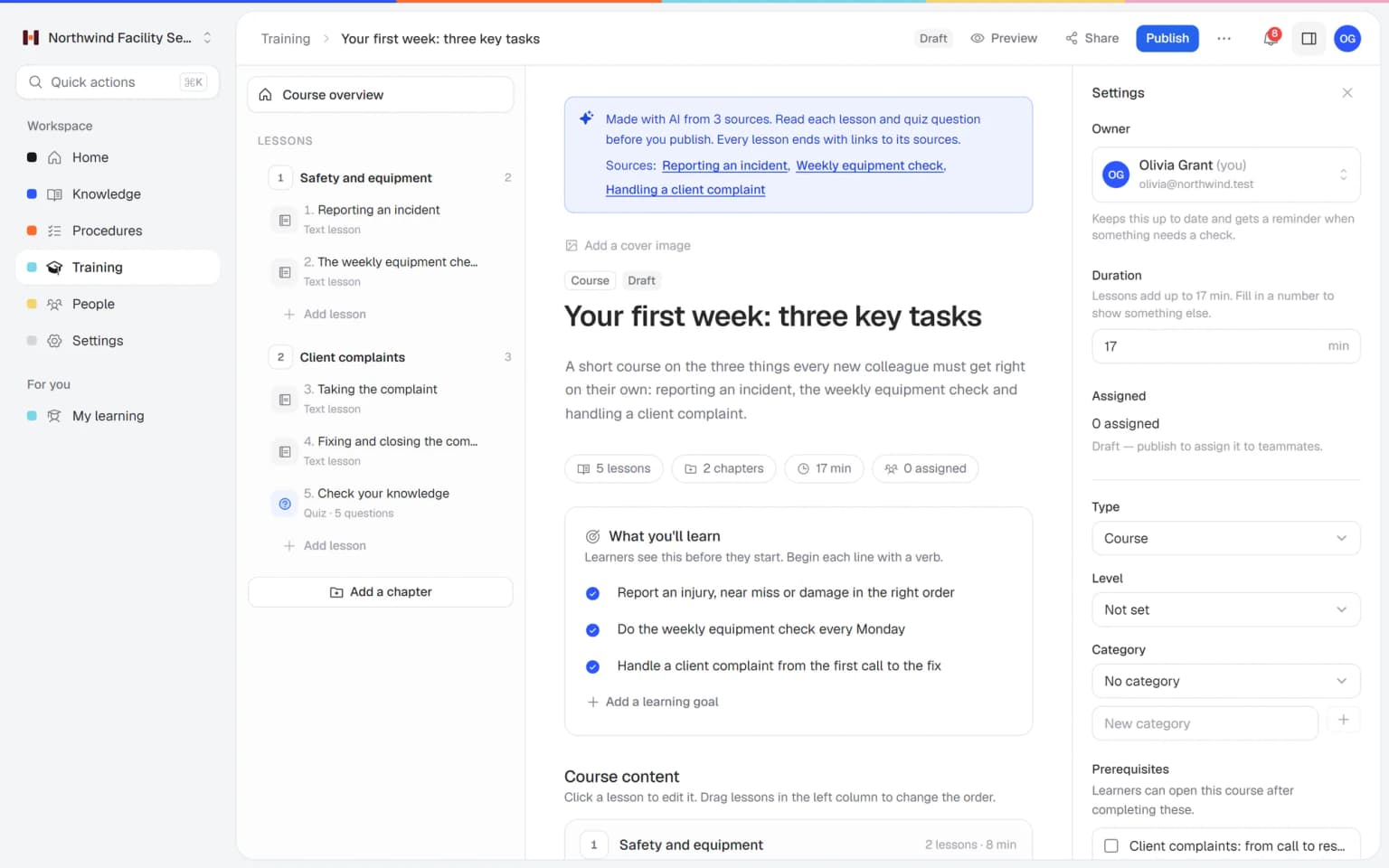
Pick the articles and procedures that matter and AI drafts lessons and quiz questions that link back to their sources. You check it, adjust it and assign it to the people who need it.
- Built from your own knowledge
- Every lesson links to its source
- Quiz questions drafted for you
- Nothing goes live until you approve it
A plan that grows with your team
Try Helpable free for 14 days, no credit card needed. Then pick the plan that fits your team.
Help center SEO is included in every plan, for each public help center you run. Business Plus gives you 3 knowledge bases and Business Max 10, and from Business extra ones are also an add-on.
Business
Your knowledge base for team and customers, written faster with AI.
$29/month
Billed monthly
That's $0.95 a day
Start free trial- 3 team members included
- An internal knowledge base and a public help center
- AI writes first versions from your own documents
- Start from what you have: documents, Word files and your website
- Procedures everyone follows, with read confirmations
- Your help center on your own web address
- 250 AI credits per month
- Recommended · your free trial runs on this plan
Business Plus
Train your team on that knowledge: courses, quizzes and progress per person.
$89/month
Billed monthly
That's $2.93 a day
Start free trialEverything in Business, plus:
- 5 team members included
- Training with quizzes, due dates and reminders
- See per person who finished what
- Practice conversations with AI, included
- Video lessons and final tests
- Certificates you can show clients and inspectors
- Results exported in one click
- 3 help centers and 3 internal knowledge bases
- 750 AI credits per month
What's in Business
- 3 team members included
- An internal knowledge base and a public help center
- AI writes first versions from your own documents
- Start from what you have: documents, Word files and your website
- Procedures everyone follows, with read confirmations
- Your help center on your own web address
- 250 AI credits per month
Business Max
Training that runs by itself, and proof of who really knows what.
$179/month
Billed monthly
That's $5.88 a day
Start free trialEverything in Business Plus, plus:
- 9 team members included
- New colleagues get their training automatically
- A fixed onboarding route from day one
- Learning insights: who really studied and who clicked through
- Skills matrix and a training record per person
- Practical work signed off on the floor
- Locations with their own managers
- Refresher training that comes back by itself
- Certificates that expire on time, in your own design
- Your help center fully in your own brand
- 10 help centers and 10 internal knowledge bases
- 1,500 AI credits per month
What's in Business Plus
- 5 team members included
- Training with quizzes, due dates and reminders
- See per person who finished what
- Practice conversations with AI, included
- AI writes first versions from your own documents
- Start from what you have: documents, Word files and your website
- Procedures everyone follows, with read confirmations
- Video lessons and final tests
- Certificates you can show clients and inspectors
- Results exported in one click
- Your help center on your own web address
- 3 help centers and 3 internal knowledge bases
- 750 AI credits per month
Grow when you need to
Add these to Business and up, any time. You only pay for what you use.
- More people
Add people one by one as your team grows, for a fixed price per person on every plan.
$9/month
- A second help center
A help center and handbook for another brand, location or client.
$10/month
- Only your brand
Remove “Powered by Helpable” from your help center. Included in Business Max.
$19/month
- Cancel any time
- Data stored in the EU
What is help center SEO?
Help center SEO means setting up your help articles so search engines can find, read and show them. Helpable does the technical part for you: clean web addresses, a sitemap and a clear description of each article, plus a search title and description you can set yourself.
Can I set the search title and description per article in Helpable?
Yes. In Helpable every article has an info panel where you set the web address, the search title and the search description. A preview shows how the article will look in Google.
What happens to old links when I rename an article?
Helpable keeps old links working. When you change the web address of an article, visitors and search engines that use the old address are sent to the new one.
Can I keep some help articles out of Google?
Yes. In Helpable you can switch off search engines for a single article, or block search engines for a whole knowledge base.
Does Helpable make a sitemap for my help center?
Yes. Helpable creates a sitemap for every public help center with all published articles, so search engines can see new and updated articles.
Can AI assistants read my Helpable help center?
Helpable help centers are built to be easy to read for search engines and AI assistants. Each article has a clear structure, a clean address and a clear description of what it is about.
Read more
Read more about this
- Knowledge base SEO: make help articles rank on GoogleWhy help articles often don't rank and how structure, sitemaps and schema help.Read the article
- How to organize a knowledge base: 3 methodsThree ways to structure a knowledge base, common mistakes and how to name categories.Read the article
- How to write knowledge base articles: 8 rulesConcrete writing rules with good and bad examples, plus a copy-paste template.Read the article
Help center SEO: how Helpable gets your articles found
What help center SEO is, how it works in Helpable step by step, how it fits with other features and what to look for when you compare tools.
What is help center SEO?
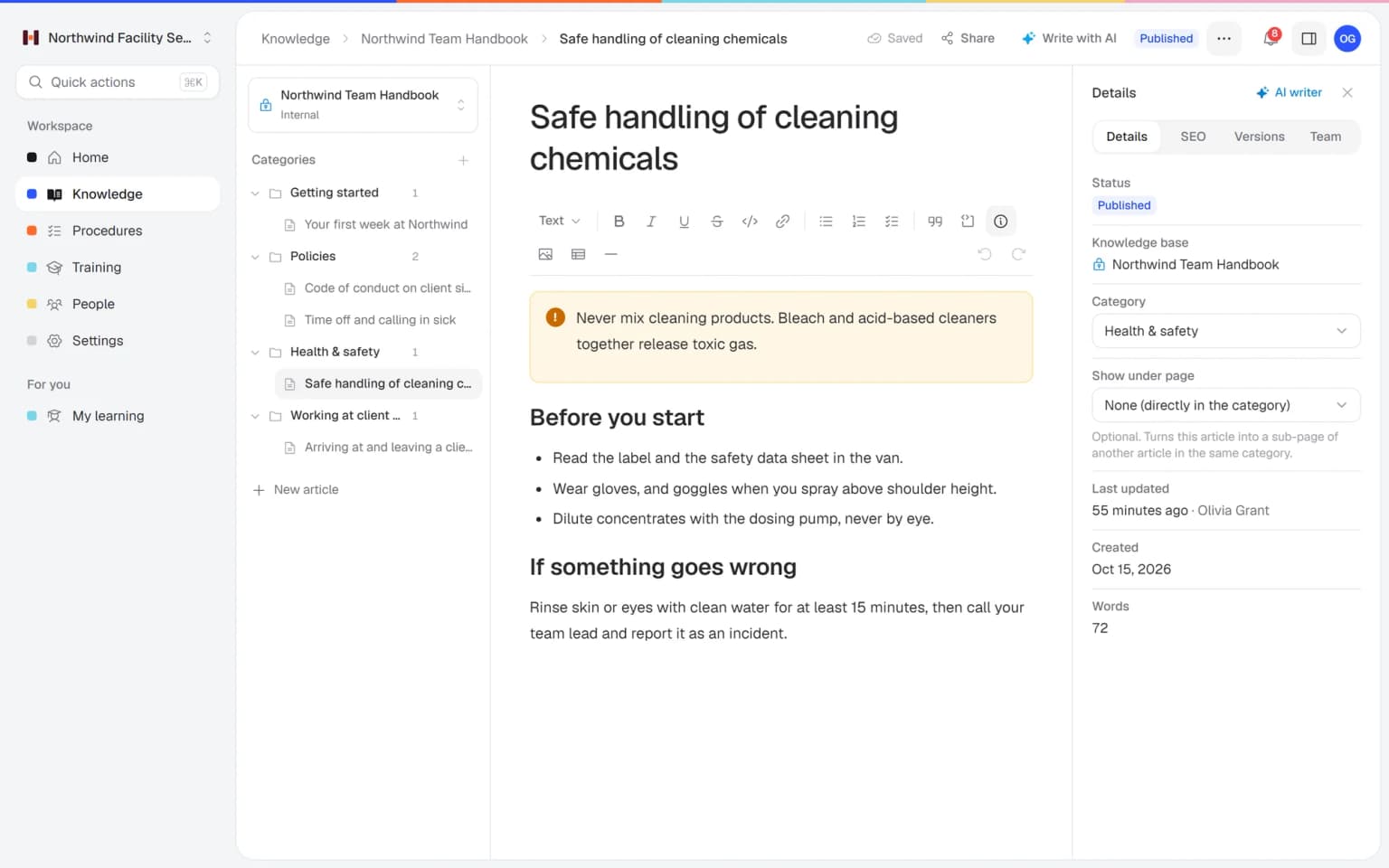
Helpable help center SEO means your help articles are set up so search engines can find, read and show them. When a customer types a question into Google, your own answer can show up and they solve it on their own. Fewer of them need to email or call you.
Most of it is technical, and Helpable does that part for you: clean web addresses, a sitemap per help center and a clear description of each article for search engines. You write good answers in your knowledge base and decide how they look in the results.
How to make help articles rank on Google, step by step
Helpable takes care of the basics, and a few steps make each article stronger. First, write the answer in the article editor with clear headings and steps. Second, check the web address Helpable made from the title, and shorten it if you like. Third, write a search title and description and look at the preview of the Google result. Fourth, publish, and the article goes into the sitemap of your help center. Fifth, rename freely later, because old links send visitors to the new address.
You can keep one article out of search engines, or block a whole help center while you are still building it.
How SEO works with insights, AI and branding
Helpable help center SEO is strongest when you combine it with the other help center features. Help center insights show which searches in your help center found nothing, so you know which article people need. The AI writer drafts that article from your own files, and you check it before it goes live.
When customers click your result in Google, they land on a page with your logo, color and welcome text from branding. Each article also shows a path back to its category, a table of contents and related articles, which helps people and search engines find their way.
Help center SEO for small teams that answer customers
Helpable suits small teams that get the same customer questions again and again. Online sellers in ecommerce publish answers about delivery and returns. Software companies in SaaS explain features and settings. Customer service teams send a link to the article and know it still works after a rename.
Organizations in childcare or home care can share practical information with families and clients in a public help center, and keep internal procedures in a separate knowledge base for staff.
Helpable vs Notion and Google Drive for public help articles
Helpable gives you a public help center with SEO settings per article, next to an internal knowledge base, procedures and employee training. Notion is a workspace for notes, docs and wikis with templates and Notion AI. Google Drive stores and shares files, with permissions and AI search. Read Helpable vs Notion and Helpable vs Google Drive to see the differences in detail.
Helpable has an English and Dutch app and stores your data in the EU. You can try Business Plus free for 14 days, and you need no credit card to start.
Is help center SEO included in every Helpable plan?
Helpable includes help center SEO in every plan, so each public help center gets clean addresses, a sitemap and search settings per article. Every plan has at least one public help center, Business Plus has 3, Business Max has 10, and from Business extra knowledge bases are an add-on. Compare the plans on the pricing page.
Let customers find your answers in Google
Publish your first help article today and see how it shows up in search.
- 14 days free
- No credit card needed
- Cancel any time