Work instruction software

Work instruction software people follow

Helpable is work instruction software for teams that do the same tasks every day, from cleaning and installation to hospitality, warehouse work and customer support. Write each task as numbered steps with photos and checklists, open it on a phone, train people on it and see who confirmed the latest version.

  • Photos and checklists in steps
  • Opens on any phone
  • Confirmed per version
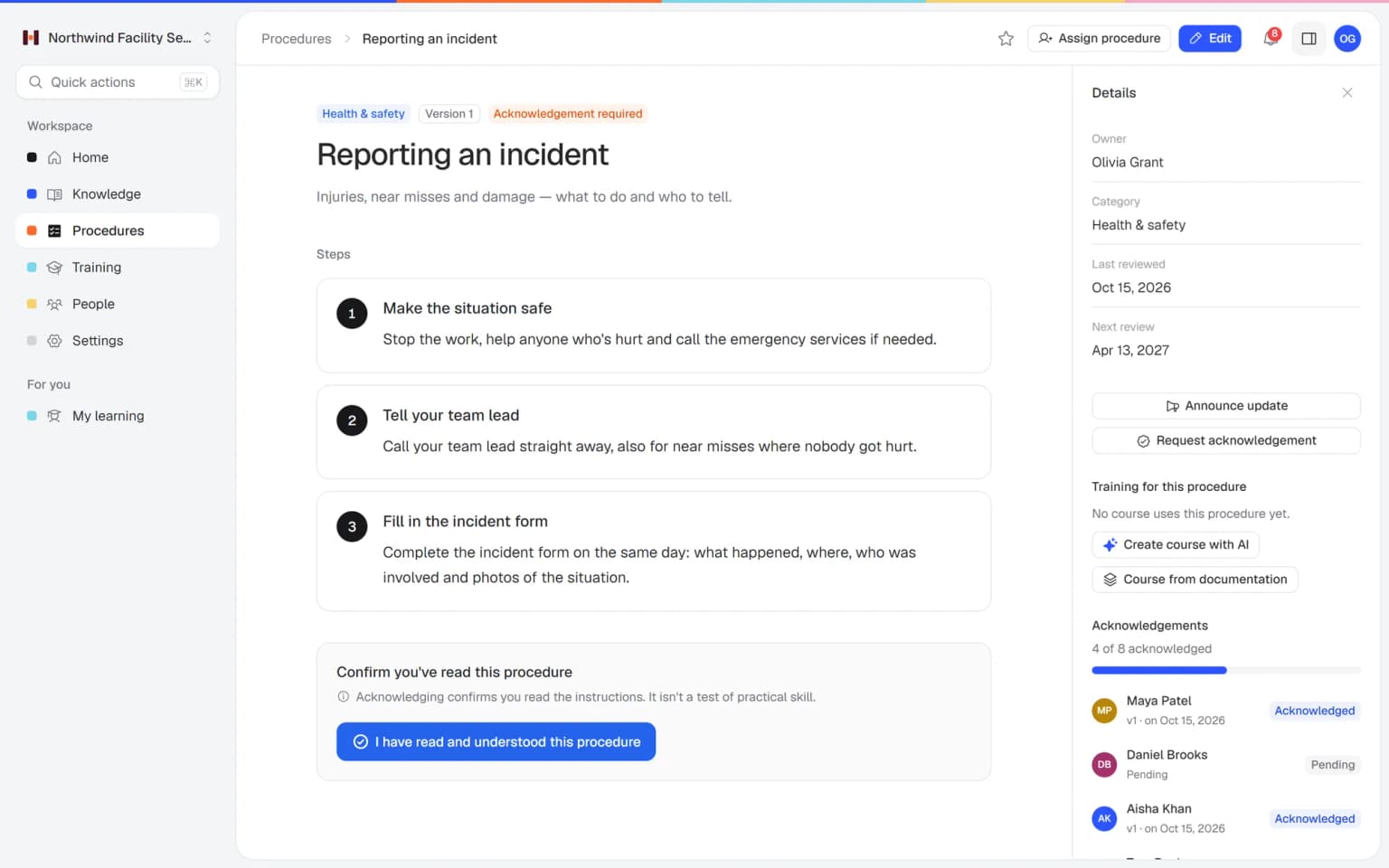
Work instruction Reporting an incident in Helpable with three numbered steps, owner, next review date and 4 of 8 people acknowledged

Why instructions on paper and in PDFs get skipped

Most teams have instructions somewhere. The trouble starts when people need them on the job.

  • The binder stays at the office

    Instructions sit in a folder or on a shared drive, far from the client site, the kitchen or the warehouse floor.

  • Old versions keep going around

    Printouts and forwarded PDFs live on after a change, so two people follow two different versions.

  • Steps get lost in long text

    A page of text hides the one step that matters, and new people skip it.

  • Nobody knows who saw the change

    After an update you hope everyone noticed, and you find out who didn't when a client complains.

From one task to a team that does it the same way

Work instructions in Helpable connect to training, confirmations and reports.

  1. Write the steps

    Numbered steps with text, photos and checklists inside the steps. Give the instruction an owner, a category and a review interval.

    Write the steps: how it looks in Helpable
  2. Turn it into training

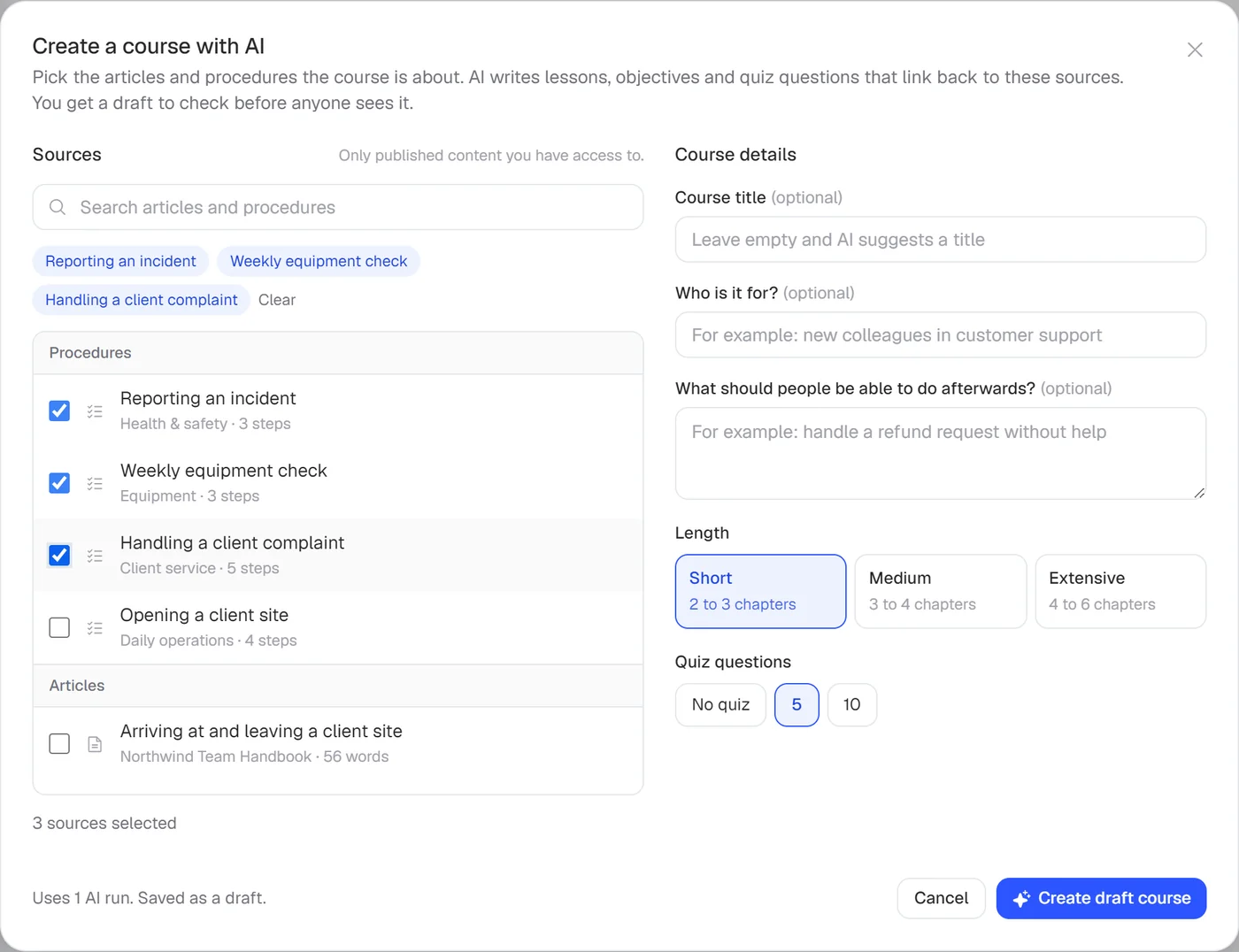
    Pick the work instructions you want and let AI draft a training with lessons that link back to them. You check it and add a quiz.

    Turn it into training: how it looks in Helpable
  3. Ask people to confirm

    Request a read confirmation. People confirm with one click and you see who confirmed which version.

    Ask people to confirm: how it looks in Helpable
  4. Share a change in one go

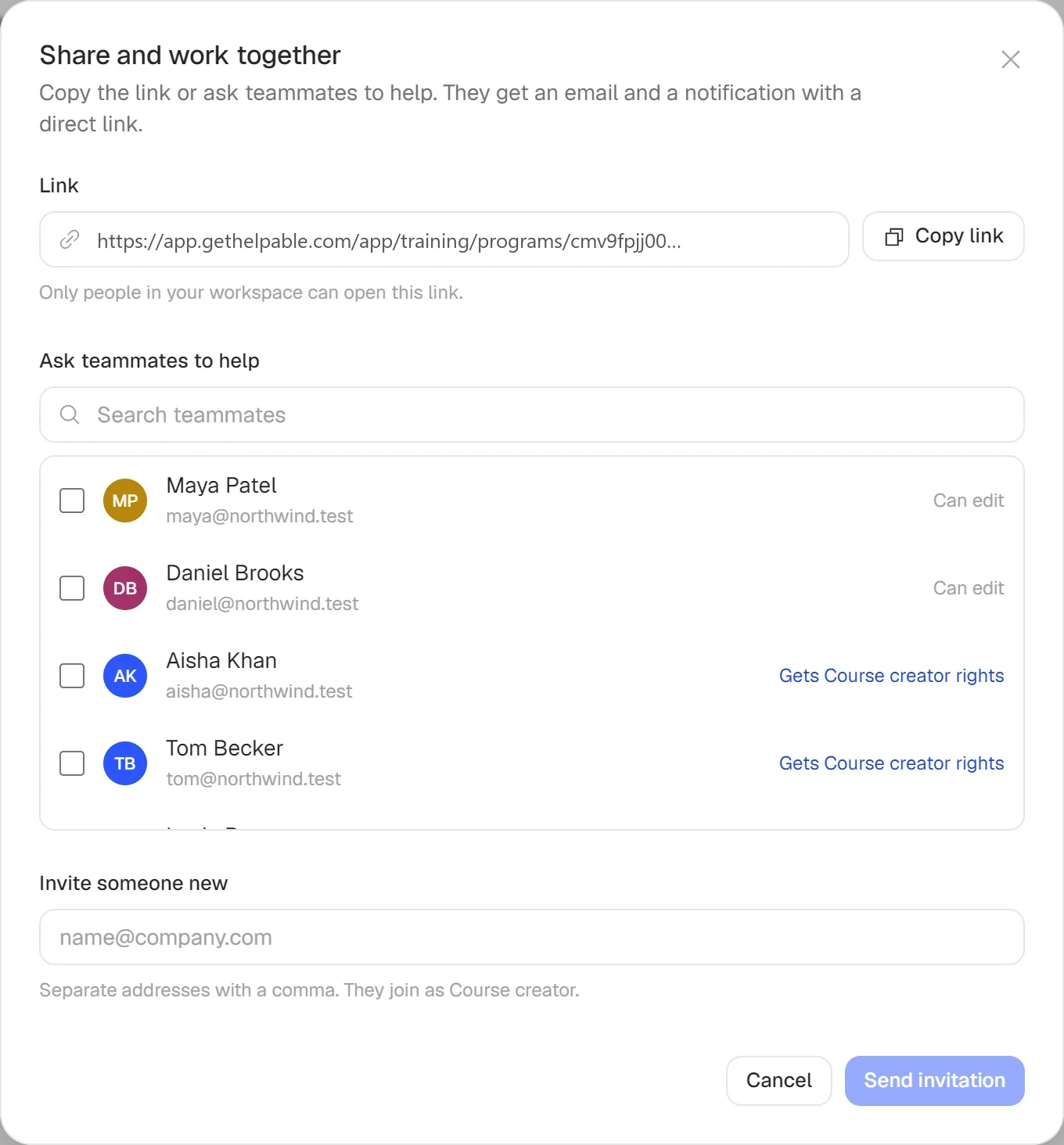
    Publish a new version with a short change summary, announce it to everyone assigned and ask them to confirm again.

    Share a change in one go: how it looks in Helpable
  5. See who is up to date

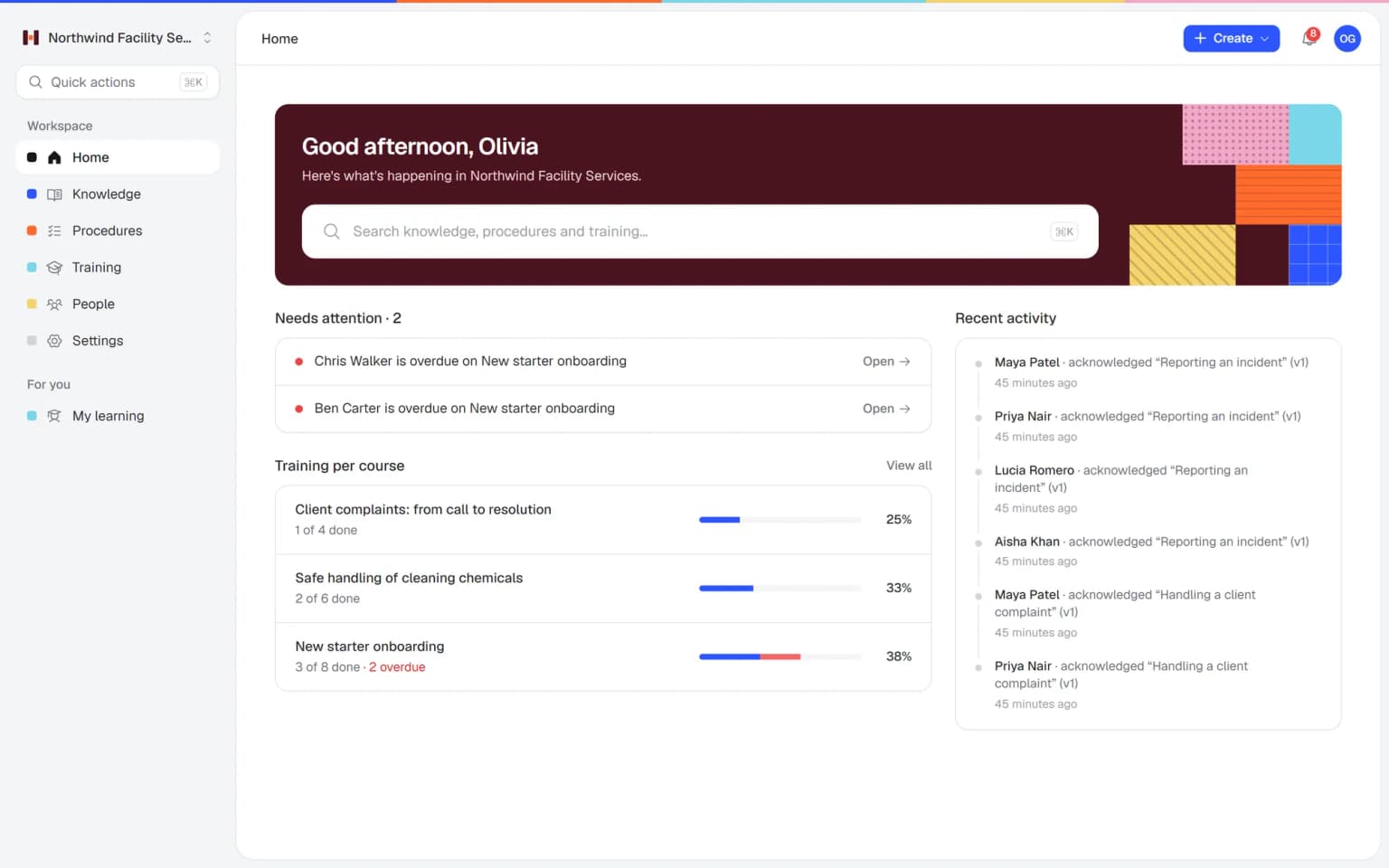
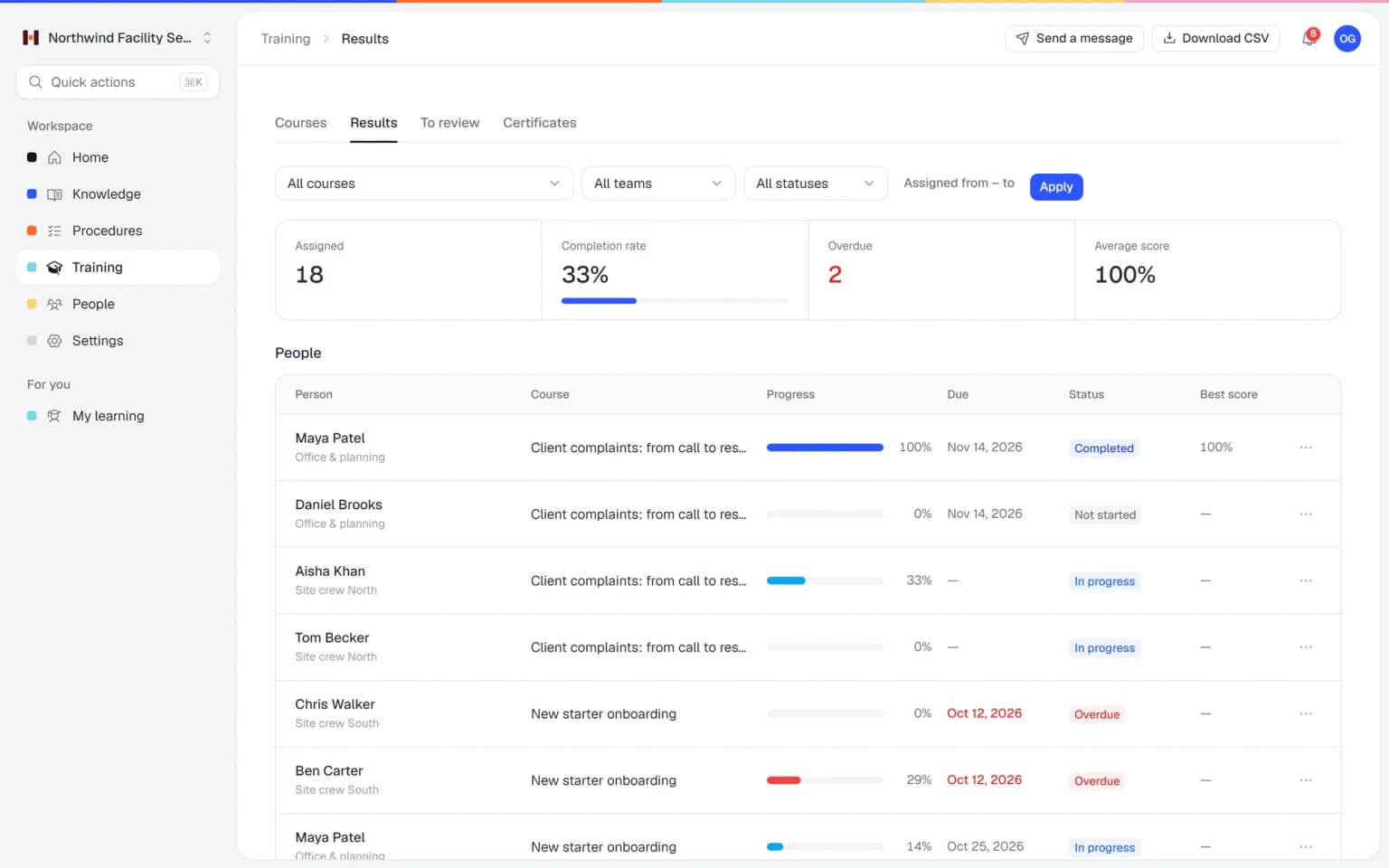
    Confirmations per version and training reports per team and per person show who works by the current steps.

    See who is up to date: how it looks in Helpable

Instructions that hold up on the job

Clear steps on any screen, a confirmation from every person and a quick check that the instruction landed.

Steps anyone can follow on site

Numbered steps with a short explanation, a checklist inside the step, an owner and the next review date. People open it on their phone and work through it.

  • Photos and checklists inside steps
  • Owner and next review date
  • Opens in the browser on a phone

See who read the latest version

Ask for a read confirmation on a new version and watch confirmations come in per person. You only follow up with the people still pending.

Check that it landed

Add a short quiz to the training on a work instruction. People see right away why an answer is right, and you see who passed.

What you get for your work instructions

The parts of Helpable that make instructions easy to follow and easy to keep right.

  • Procedures

    Short numbered steps in the order of the work, with a photo of the right result and a checklist inside the step. People follow them on site in the phone's browser.

  • Read and acknowledge

    Ask everyone who does the task to confirm the current version with one click. You see per person who confirmed, and call only the ones still pending.

  • Document version control

    Publish a new version with a one-line summary and announce it to everyone assigned. Old copies stop circulating because everyone opens the current one.

  • Quizzes

    Link the instruction to a lesson with a short quiz. It shows who understood the steps before they work alone.

  • Training with AI

    AI turns a set of work instructions into a training with lessons and a quiz. New people practice the steps before their first job.

  • Multilingual

    Translate an instruction with the AI writer into English, Dutch, German, French or Spanish, and check it before publishing. Mixed crews understand the same steps.

New · Answers

Your team finds the answer on its own in seconds, with the source

Employees ask a question in their own words and get a short answer from your own articles, procedures and documents, with a link to the exact page it came from. You stop being the person everyone asks.

  • Answers come from your own knowledge
  • Every answer shows where it came from
  • Says so plainly when it doesn't know
  • Each person only sees what they may see
  • Works with your existing documents
  • You approve every new article

Start with the documents you already have

Upload your handbook or policies. Helpable makes them searchable right away and suggests articles you check, change and approve. Nothing goes live until you say so.

A gap becomes a to-do

When the answer isn't there, Helpable says so and the question lands on your list of things to write down, with no name attached.

Who it is for

Teams where the same task is done by many people, often away from a desk.

  • Teams on location and at client sites

    Cleaning, installation and maintenance crews who follow the steps on site, on their phone.

    In practice: A technician follows the installation steps for a heat pump on site, with a photo of the correct result at each step. Before leaving, the checklist covers the handover to the customer.

    See how
  • Shift teams with new and temporary staff

    Hospitality, retail and warehouse shifts with new and temporary staff who need to open, close, pick and pack the same way.

    In practice: A new kitchen help follows the closing instruction step by step on the tablet by the door, with photos of how a clean station looks. The chef checks the result, and nobody has to explain it again.

    See how
  • Office and client teams

    Agencies, accountancy firms and real estate offices with tasks that have to look the same for every client.

    In practice: A new account manager follows the instruction for setting up a client's monthly report, step by step with screenshots. Their report looks the same as everyone else's from the first month.

    See how
  • Software and support teams

    Support teams who need the latest steps the day the product changes, with a confirmation from each person.

    In practice: On release day, the instruction for handling a refund gets new steps and screenshots. You announce the update, and each agent confirms the new version before their next shift.

    See how
  • Care and childcare teams

    Carers who follow protocols step by step and must have read the current version.

    In practice: A home carer follows the steps for a hoist transfer, with a photo per step. Every carer confirms the current version, so the team lead knows who still has to read it.

    See how
Made for teams in
Pricing

A plan that grows with your team

Try Helpable free for 14 days, no credit card needed. Then pick the plan that fits your team.

Grow when you need to

Add these to Business and up, any time. You only pay for what you use.

  • More people

    Add people one by one as your team grows, for a fixed price per person on every plan.

    $9/month

  • A second help center

    A help center and handbook for another brand, location or client.

    $10/month

  • Only your brand

    Remove “Powered by Helpable” from your help center. Included in Business Max.

    $19/month

  • Cancel any time
  • Data stored in the EU

Questions about work instruction software

Can't find your answer? We're happy to help.

What is a work instruction in Helpable?

A work instruction in Helpable is a procedure for one task, with numbered steps, text, photos and checklists inside the steps. It has an owner, a category, a review interval and a version history.

Can people open work instructions on their phone?

Yes. Helpable works in the browser on phones, tablets and laptops, so people can follow the steps on site. There is no native mobile app to install.

Can I add photos to each step?

Yes. In Helpable you can add images to a step and a checklist inside the step, for example what to check before you leave a client site.

How do I know who read the latest version?

Helpable lets you request a read confirmation on a work instruction. People confirm with one click, and the overview shows per person which version they confirmed, when, and who is still pending. There are no automatic reminders for confirmations, so you follow up yourself.

Does a read confirmation prove someone can do the task?

No. A read confirmation in Helpable records that someone read the instruction. A quiz in the training checks understanding; practical skill is still something a team lead checks on the job.

How is this different from SOP software?

Helpable covers both. This page is about the instructions people follow during the work itself; the SOP software page covers managing all your standard operating procedures, owners and reviews across the company.

Is Helpable useful for support teams at software companies?

Yes. Helpable helps support teams stay up to date when the product changes: update the instruction or article, announce the update and ask for a confirmation. There are no integrations with Slack, Jira or Linear.

What does Helpable cost?

Helpable starts at $29 per month for Business, with 3 team members, procedures, read confirmations and the AI writer. Business Plus at $89 per month gives you 5 members, training with quizzes and assigning with due dates.

Can I try Helpable for free?

Yes. Helpable has a free trial of 14 days on Business Plus, and you don't need a credit card to start.

Which languages and where is my data stored?

Helpable is available in English and Dutch, and your data is stored in the EU. You write the instructions in the language your team works in.

Put your first work instruction on every phone

Start with the task that goes wrong most often. Write the steps in Helpable, add a photo, ask your team to confirm and see who is up to date.

  • 14 days free
  • No credit card needed
  • Cancel any time