Standardize business processes

Process standardization software

Helpable is process standardization software: you agree on one way of working, write it down as clear steps, train people on it and see who works by the current version. When everyone does a task their own way, quality depends on who is on shift.

  • One version for everyone
  • Read confirmation per person
  • Training on each procedure
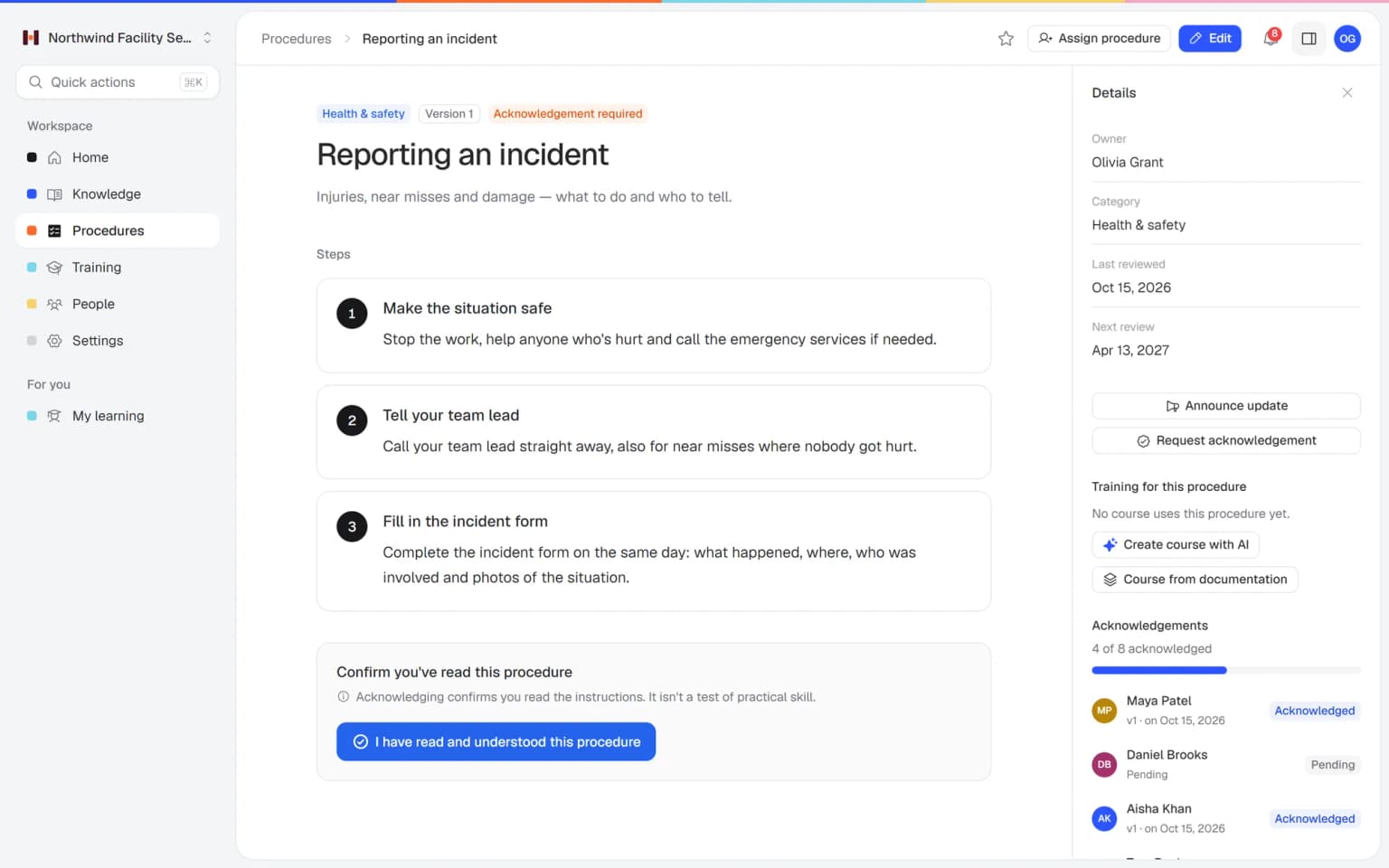
Procedure Reporting an incident in Helpable with three numbered steps and the label Acknowledgement required

Sounds familiar?

Small differences in how people work add up to complaints, rework and awkward client calls.

  • That's how Lisa does it. I do it a bit differently.

    Two colleagues, same task
  • The client noticed the new team skipped a step.

    Account manager
  • We changed the process last month. Did everyone get that?

    Operations manager
  • Every location has its own version of the checklist.

    Owner with two locations

How do you standardize processes in a small business?

Pick the tasks where mistakes cost the most, write each one down as numbered steps with one owner, train people on it and ask them to confirm they read it. When the process changes, publish a new version and ask again. Helpable keeps procedures, versions, read confirmations and training together, so you can see who works by the current version.

Who it is for

Teams where the same task is done by several people, often across shifts or locations.

  • Teams on location and at client sites

    Cleaning, installation and maintenance teams where the result now depends on who happens to do the job.

    In practice: Every site gets cleaned to the same standard, whoever is on duty. One procedure with photos of the finished result, confirmed by each cleaner, replaces each team's own habits.

    See how
  • Shift teams with new and temporary staff

    Hospitality, retail and warehouse teams where every shift should open and close the same way.

    In practice: Opening and closing work the same on every shift. The checklist lives in one procedure, new staff confirm it, and the manager sees who still has to.

    See how
  • Office and client teams

    Agencies, accountancy firms and recruiters that want client work done the same way by everyone.

    In practice: Every client report goes out in the same format and on the same day. The process sits in one procedure with an owner, and the version history shows each change.

    See how
  • Startups and software companies

    Support and operations teams that need one current way of working while features and processes change every month.

    In practice: Support handles refunds the same way after every pricing change. You publish the new version, announce it and see per agent who confirmed it.

    See how
  • Multi-location businesses and franchises

    Businesses with several branches where team leads need a quick view of who works by the current version.

    In practice: Two stores stop running their own versions of the checklist. Each store is a team in Helpable with the same procedure assigned, so every branch works from one current version.

    See how
Made for teams in
Illustrative example

A process change at a company with two locations

A facility services company changes how damage on site is reported. This is how the change usually spreads, and how it spreads with Helpable.

Before

  1. The new way is agreed in a meeting and shared as a PDF in the group chat.

  2. Location North works the new way. Location South still uses the old form.

  3. A damage report is missing information. Nobody is sure who saw the update.

  4. The new hire is trained from an old printout.

With Helpable

  1. The owner updates the procedure, adds a short summary of what changed and publishes version 2.

  2. Everyone assigned to it gets a message and is asked to confirm the new version.

  3. The overview shows who confirmed. Team leads follow up with the rest.

  4. The onboarding training links to the procedure, so the new hire learns version 2 from day one.

How Helpable keeps everyone on the same version

Five steps from an agreed way of working to a team that follows it.

  1. Write the steps down once

    Numbered steps with text, photos and checklists, one owner and a category. Start from a template if you like.

    Write the steps down once: how it looks in Helpable
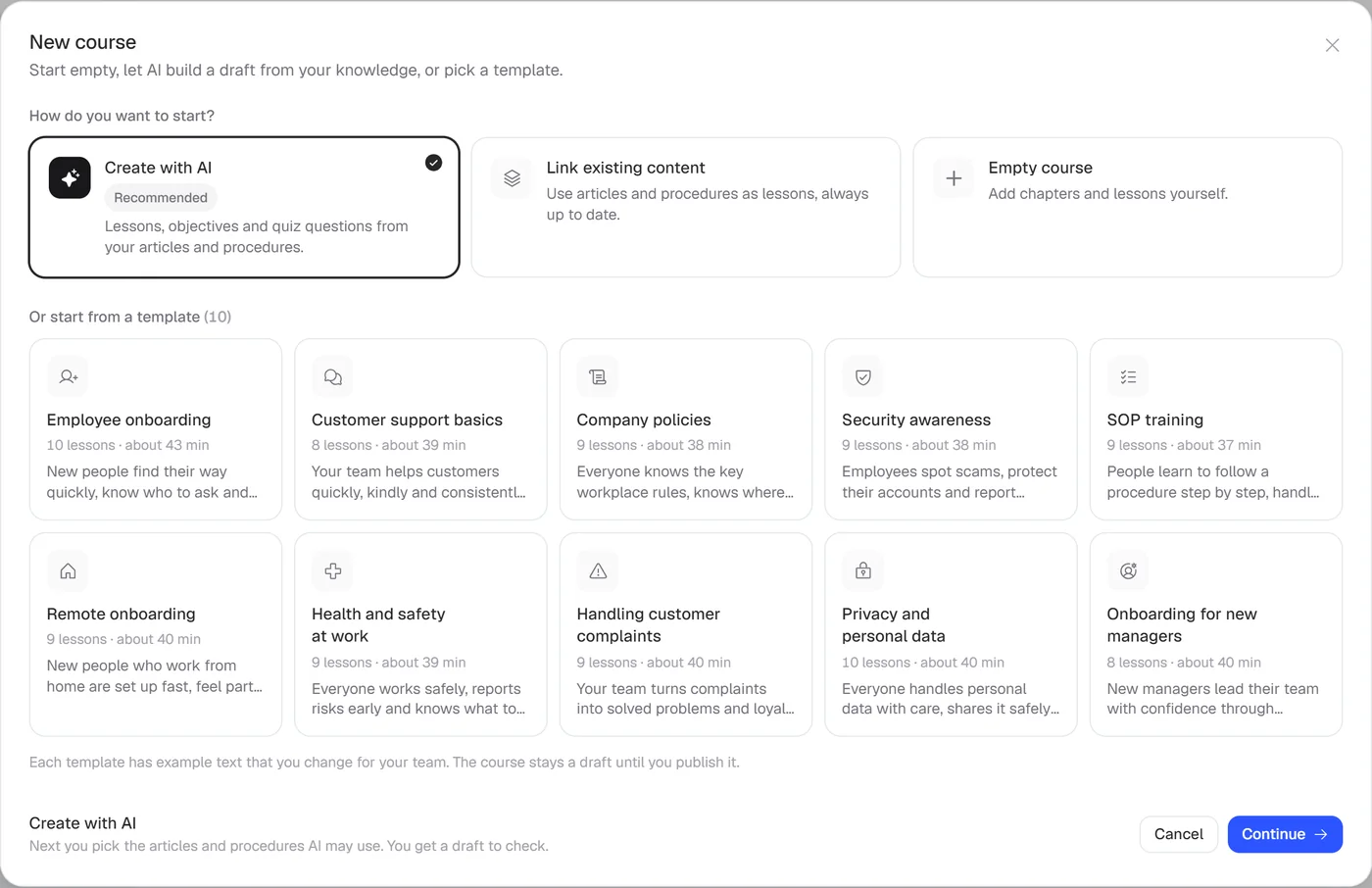
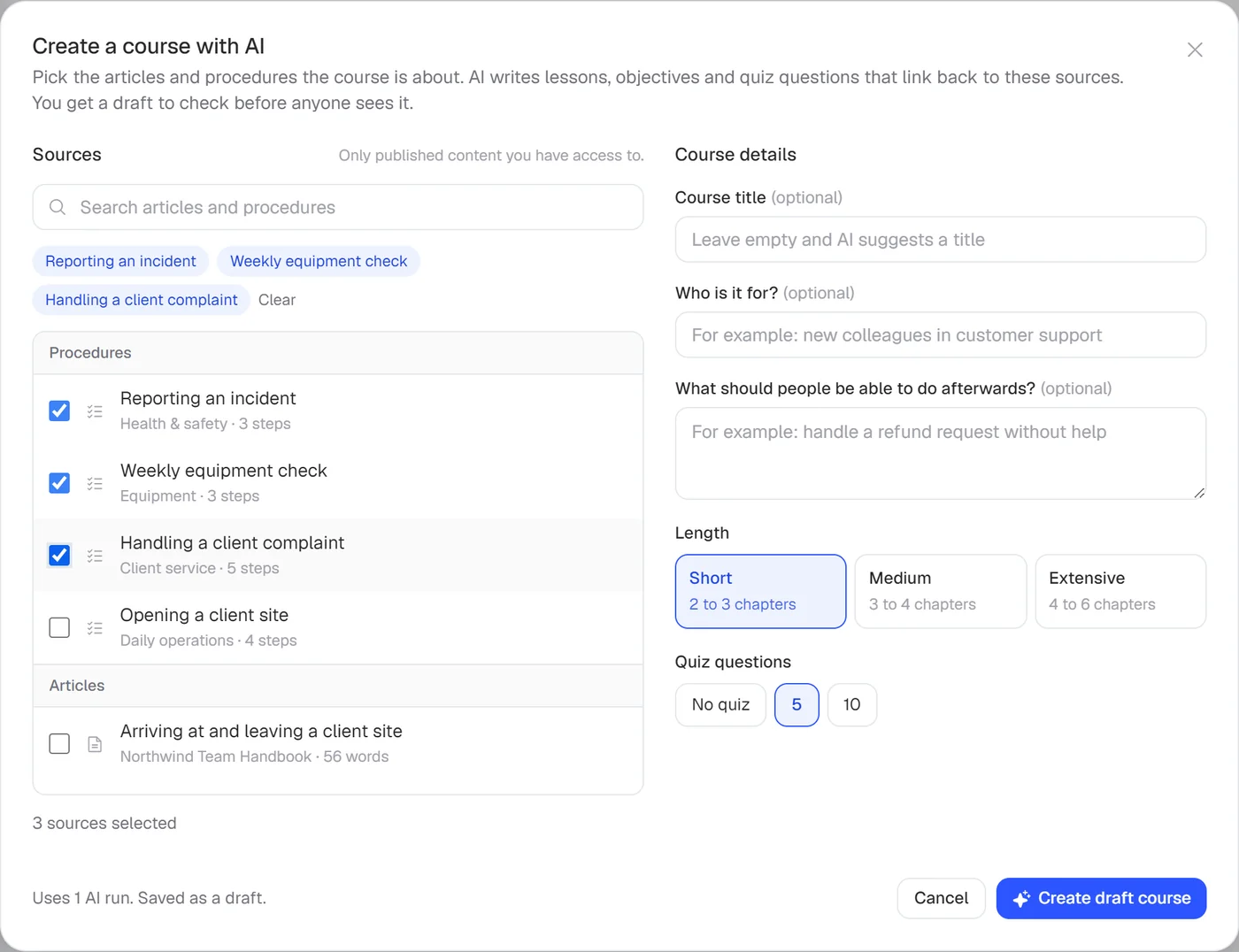
  2. Train people on it

    Turn a procedure into training with AI, or link it as a lesson. Add a short quiz to check it landed.

    Train people on it: how it looks in Helpable
  3. Ask everyone to confirm

    Request a read confirmation and see per person who confirmed which version.

    Ask everyone to confirm: how it looks in Helpable
  4. Change it once, tell everyone

    Publish a new version with a change summary, announce the update and, if you want, ask people who finished the training to redo it.

    Change it once, tell everyone: how it looks in Helpable
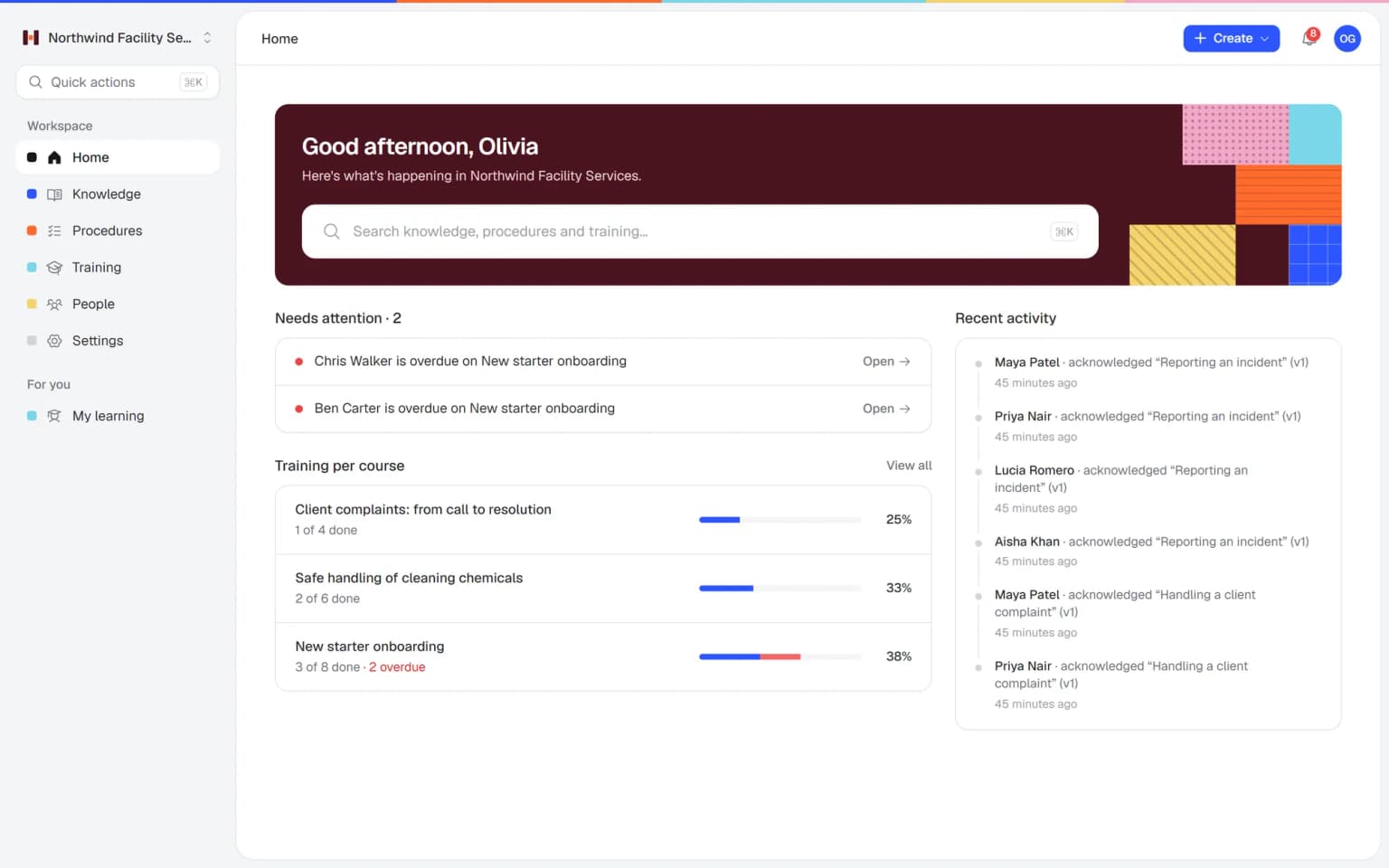
  5. Check who follows the current way

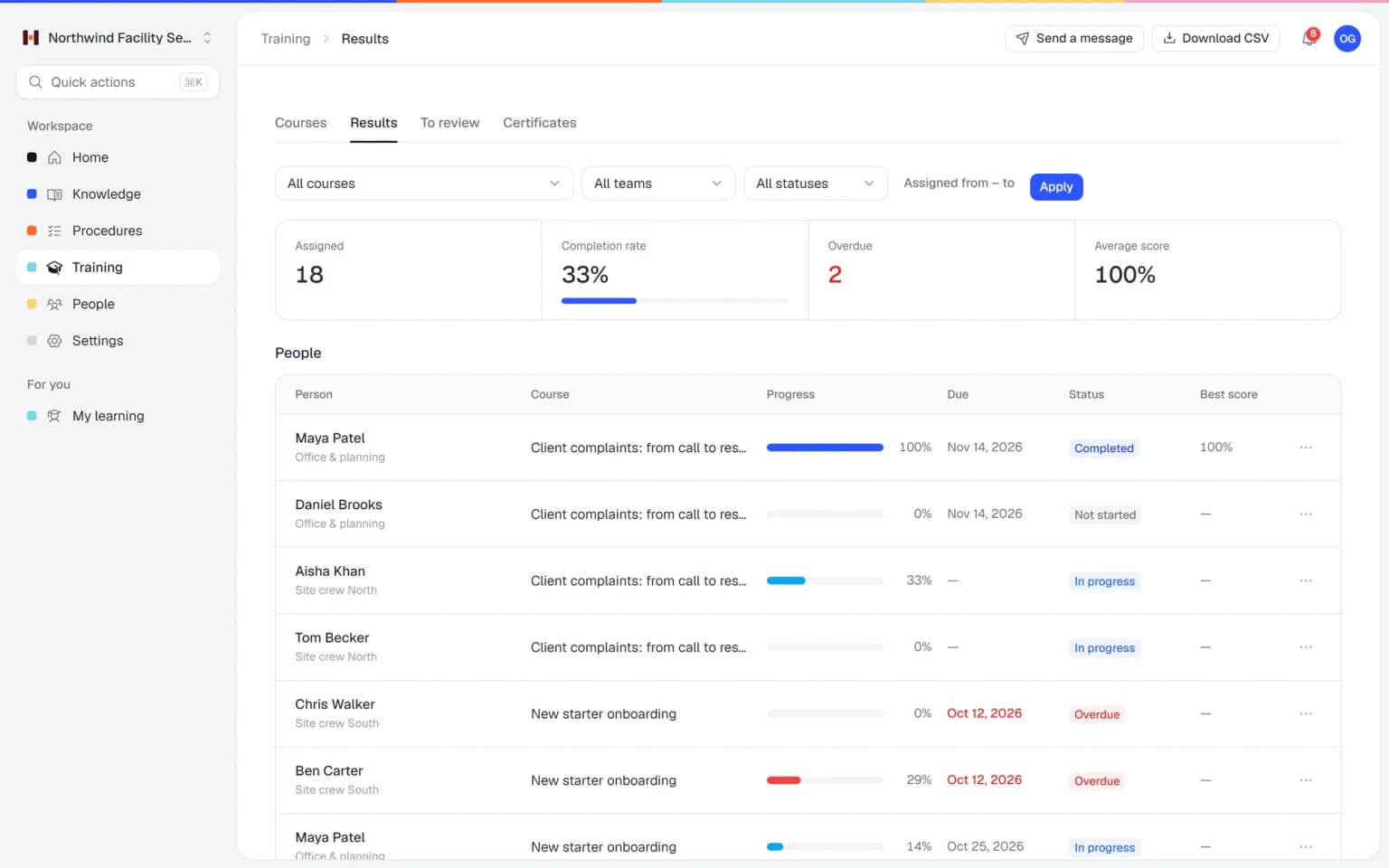
    Confirmations per version and training reports per team show where the old way still lives.

    Check who follows the current way: how it looks in Helpable
New · Answers

Your team finds the answer on its own in seconds, with the source

Employees ask a question in their own words and get a short answer from your own articles, procedures and documents, with a link to the exact page it came from. You stop being the person everyone asks.

  • Answers come from your own knowledge
  • Every answer shows where it came from
  • Says so plainly when it doesn't know
  • Each person only sees what they may see
  • Works with your existing documents
  • You approve every new article

Start with the documents you already have

Upload your handbook or policies. Helpable makes them searchable right away and suggests articles you check, change and approve. Nothing goes live until you say so.

A gap becomes a to-do

When the answer isn't there, Helpable says so and the question lands on your list of things to write down, with no name attached.

One way of working, followed by everyone

Write the steps once, get every person to confirm them and roll out changes in one go.

Steps anyone can follow

Numbered steps with photos and checklists, one owner and a review date. The right way to do the job is always one click away.

  • Version history with change summaries
  • Owner and next review date on every procedure
  • Linked training and quizzes

Know who has read the latest version

Ask for a read confirmation and watch them come in per person. You only follow up with the people who haven't confirmed.

Change it once, everyone knows

Publish version 2 with a short summary, announce it and ask for confirmation in one go.

What you get to standardize your processes

The parts of Helpable that turn an agreed way of working into the daily standard.

  • Procedures

    Text, images and checklists inside each step, so anyone can follow a task from start to finish. The result stops depending on who happens to do the job.

  • Read and acknowledge

    Ask people to confirm a procedure and see per person who confirmed which version. You know the new way has reached everyone.

  • Document version control

    Publish a new version with a change summary and announce it in one message. Everyone opens the current version, and old copies lose their place.

  • Training with AI

    Let AI draft a training from a procedure, with a quiz to check it landed. People practice the standard way before they work by it.

  • Progress and reports

    Training progress per team and per person, with CSV export. You see which team or location still works the old way.

  • Team roles and permissions

    Group people into teams, for example per location, and assign procedures per team. Every branch works from the same steps.

Who does what

Standardizing is a team effort, with clear roles.

  • Owner or operations managerDecides the standard

    Picks the processes that matter most, sets an owner for each and decides when a change needs confirmation.

  • Process ownerKeeps one procedure right

    Updates the steps after feedback, writes what changed and publishes the new version before the review date.

  • Team lead per locationMakes sure it happens

    Checks the confirmations for their team and follows up with the people who are behind.

  • EmployeeWorks by the current version

    Reads the procedure, does the short training and confirms the update with one click.

What you can expect to get out of it

No promised percentages. These are the changes teams aim for when processes are written down and followed.

  1. Consistent quality

    Clients get the same result from every team member and every location.

  2. Changes that actually land

    A new way of working reaches everyone, and you can see who has confirmed it.

  3. Less rework

    Fewer skipped steps means fewer jobs done twice and fewer apologies to clients.

  4. Easier growth

    A new location or new hire starts from the same written standard.

Pricing

A plan that grows with your team

Try Helpable free for 14 days, no credit card needed. Then pick the plan that fits your team.

Grow when you need to

Add these to Business and up, any time. You only pay for what you use.

  • More people

    Add people one by one as your team grows, for a fixed price per person on every plan.

    $9/month

  • A second help center

    A help center and handbook for another brand, location or client.

    $10/month

  • Only your brand

    Remove “Powered by Helpable” from your help center. Included in Business Max.

    $19/month

  • Cancel any time
  • Data stored in the EU

Questions about standardizing processes with Helpable

Can't find your answer? We're happy to help.

What is a procedure in Helpable?

A procedure in Helpable is a step-by-step instruction for one task, with numbered steps, text, images and checklists. It has an owner, a category, a review interval and a version history, and you can ask people to confirm they have read it.

How does Helpable handle a change to a process?

In Helpable you edit the procedure, add a short summary of what changed and publish a new version. You can announce the update to everyone assigned to it, ask them to confirm the new version and, for linked training, ask people who already finished to redo it.

Can I see who follows the latest version?

Helpable shows per procedure who acknowledged it, when, and for which version, plus who is still pending. Training reports show completion per team and per person.

Can we use Helpable across several locations?

Yes. Helpable lets you group people into teams, for example per location, and assign procedures and training to a team. Reports then show progress per team.

Is a read confirmation proof that someone can do the task?

No. A read confirmation in Helpable records that someone has read the procedure. To check understanding, add a quiz to the training; practical skill is still something a team lead checks on the job.

Which plan includes read confirmations?

Read confirmations are part of every Helpable plan, from Business up. Assigning with due dates and progress per person start at Business Plus.

What does Helpable cost?

Helpable starts at $29 per month for Business, with 3 team members included. Business Plus is $89 per month for 5 members and Business Max is $179 per month for 9 members; paying yearly is about a fifth cheaper.

Can I try Helpable for free?

Yes. Helpable has a free trial of 14 days on Business Plus, and you don't need a credit card to start.

How much work is it to set up?

In Helpable you can start with one process: write the steps, add photos and ask your team to confirm. Most of the effort goes into agreeing on the way of working itself; putting it in Helpable is the smaller part, and the SOP training template gives you a starting point.

Can people open procedures on their phone?

Yes. Helpable works in the browser on phones, tablets and laptops, so people can follow the steps on site. There is no native mobile app, and your data is stored in the EU.

Write down your way of working and make it the standard

Start with the process that causes the most rework. Put it in Helpable, ask your team to confirm it and see the difference per location.

  • 14 days free
  • No credit card needed
  • Cancel any time