Knowledge base permissions by role
Helpable gives you knowledge base permissions by role, so the right people write and update your knowledge, procedures and training. Everyone else simply reads, learns and confirms. You stay in control, and nobody has to carry the writing alone.
- 14 days free
- No credit card needed
- Invite up to 50 people at once
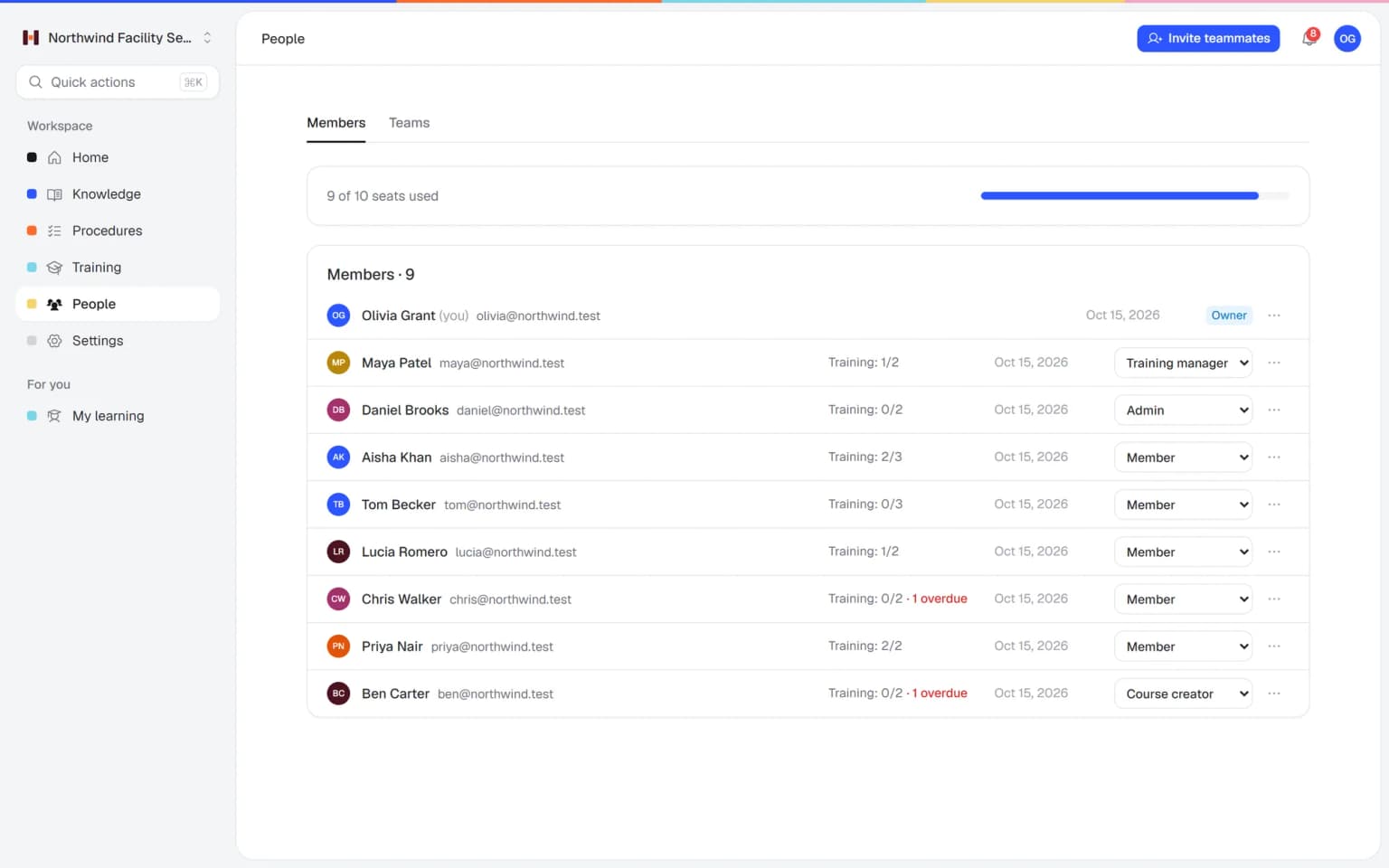
Everyone in the right place, and you in control
Helpable gives each person the access they need for their job, so your team can share the work safely.
The right people can edit
Admins and creators keep knowledge and training up to date. Members see only published content, so they never stumble on a half-finished draft.
The owner keeps control
Only the owner handles billing and can hand ownership to someone else. You decide who joins and what they can do.
Writing becomes shared work
Ask a colleague to help write or review an article, procedure or training. The person who knows the work best can add what they know.
Know-how stays when people leave
What your experienced people know ends up in shared articles, procedures and training. When someone moves on, their knowledge stays with the team.
Fewer mistakes go live
A teammate reviews new work before it is published, and members only see the published version. Your team learns from content that has been checked.
Everyone knows their part
Course creators build training, training managers assign it and follow up, and members learn and confirm. Nobody has to guess what is expected of them.
When one person holds all the knowledge, the team waits
These are the moments where small teams lose time working together on what they know.
One person writes everything
The owner or one manager ends up writing every procedure and training alone.
With Helpable Invite colleagues to help write, and give your best people a role that lets them build content too.
Anyone can change anything
In a shared folder, a document gets changed by accident and nobody knows who did it.
With Helpable Only people with the right role can edit. Members read and learn from the published version.
Adding people takes ages
Each new colleague needs their own setup, one message at a time.
With Helpable Invite up to 50 email addresses at once and pick their role in the same step.
Nobody checks the work
A new procedure goes live with mistakes because nobody read it first.
With Helpable Ask a teammate for a review before you publish, so a second pair of eyes catches the mistakes.
From a few names to a team that works together
Three steps. Most teams have everyone invited on the first day.
Invite your team
Add email addresses and choose a role for each group. People get an invite by email and join in a few clicks.
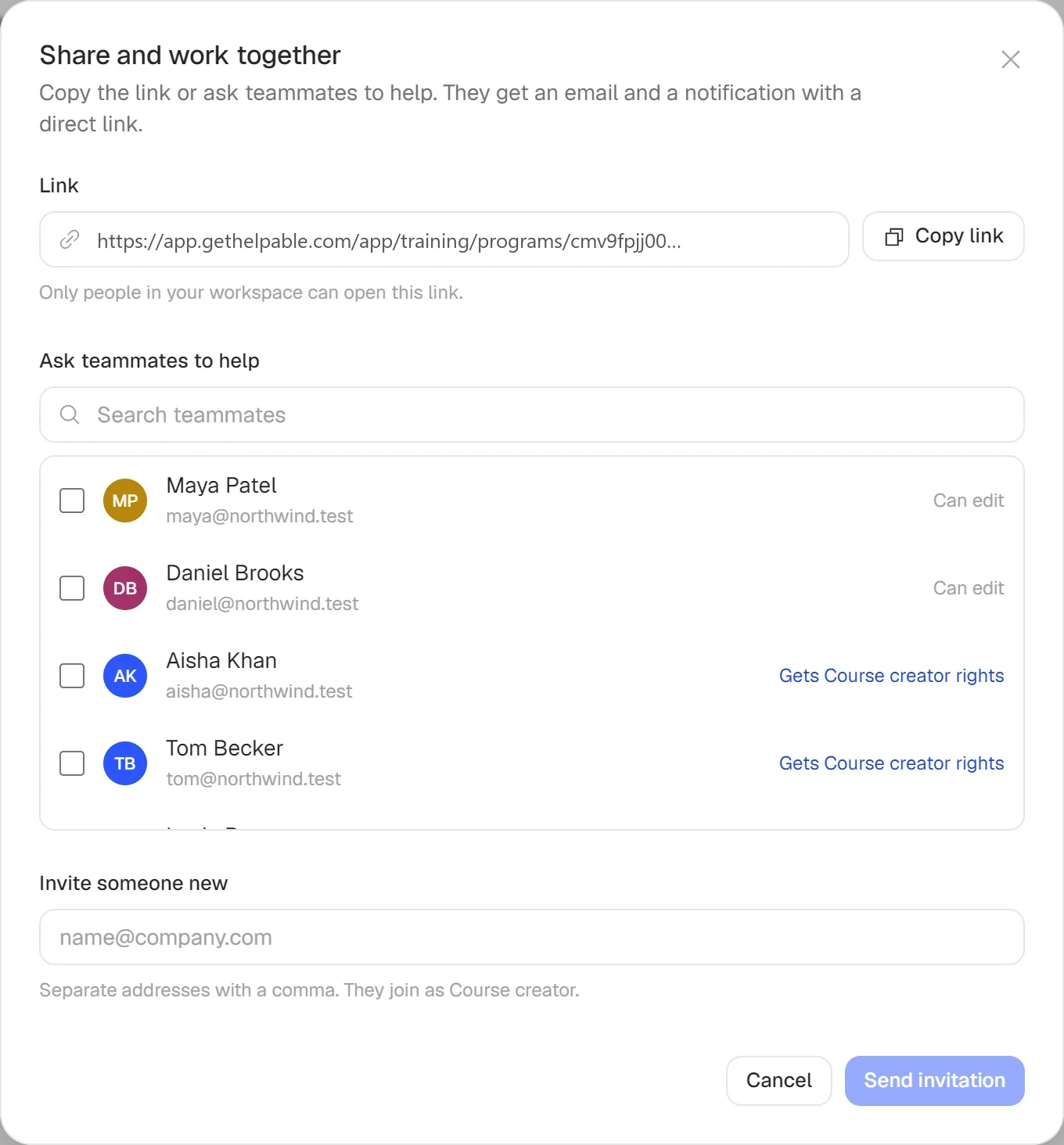
Give everyone the right role
Pick admin, training manager, course creator or member. Change a role any time as someone's job changes.
Share the work
Share a link, ask a colleague to help write or to review, and publish when it is ready.
- 14 days free
- No credit card needed
The right roles turn your team's know-how into training and knowledge
Team roles and permissions in Helpable decide who writes, who checks and who follows up. Combined with the AI writer, training and reports, the work spreads over the whole team.
Write it with AI, finish it together
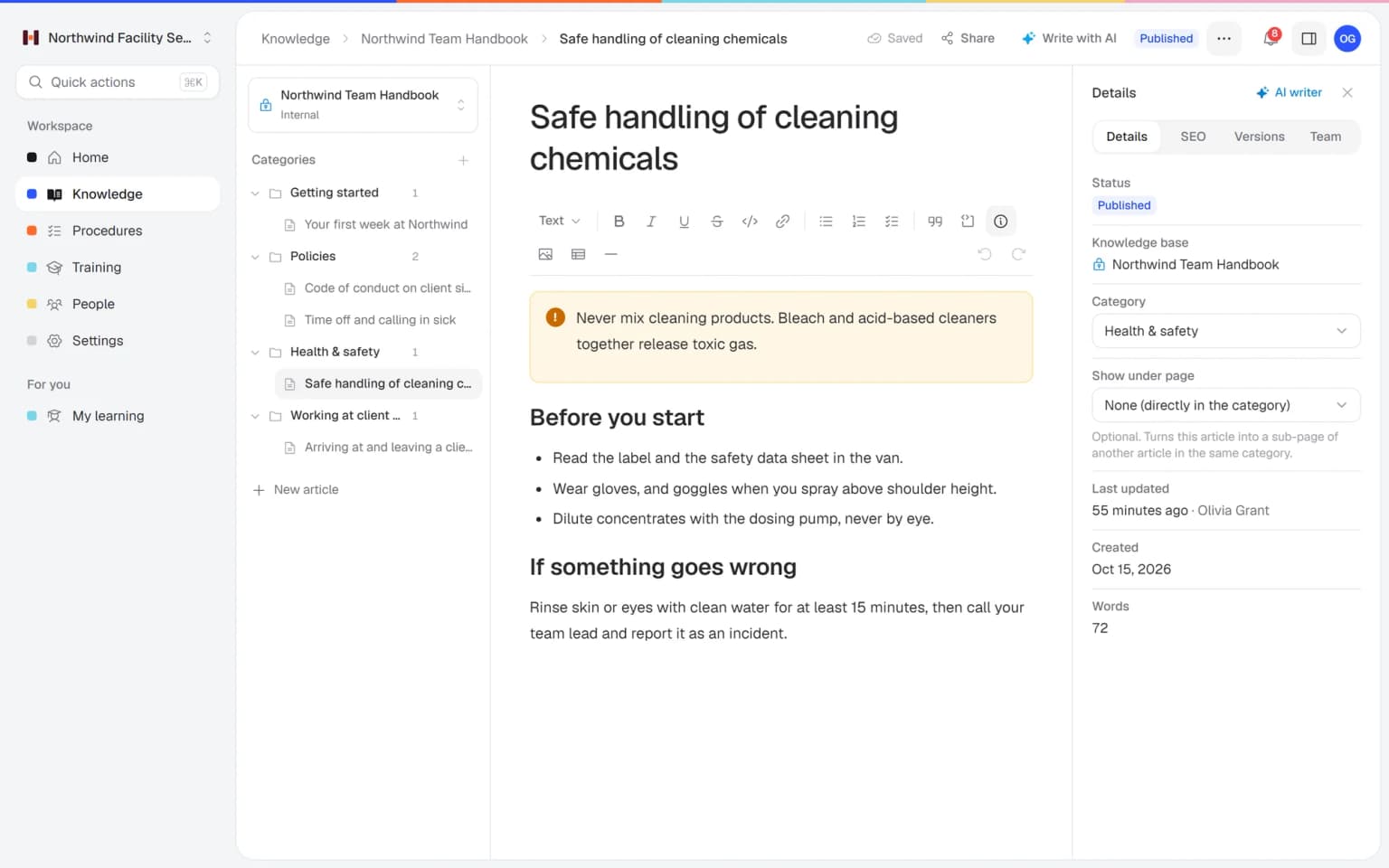
The AI writer drafts an article from your files or links. Invite the colleague who knows the work to help write it, and ask a teammate to review it before it goes live.
AI writerEach role does its part in training
A course creator builds the training, a training manager assigns it to teams with a due date and follows up, and members learn and confirm. The reports show the training manager who is done.
Progress and reportsShare a link, find it in one search
Share a link to a training, article or procedure with whoever needs it. Members find all published knowledge, procedures and training with one search, so questions get answered faster.
Knowledge base
The right roles make every other feature easier to share
Roles decide who writes, who checks and who follows up. These combinations show how that works across training, procedures and knowledge.
- + Employee trainingCourse creators build, training managers follow upA course creator builds the training, and a training manager assigns it to people or teams with a due date. Members take it and continue where they stopped.
- + Progress and reportsOnly the right people see everyone's resultsTraining managers, admins and the owner see progress, scores and certificates per person and team. Members see their own learning, so results stay with the people who follow up.
- + ProceduresAdmins keep procedures current, members confirm themAdmins write and update procedures and ask for a read confirmation. Members confirm each new version, and you see per person who has read it.
- + AI writerDraft with AI, finish with the expertThe AI writer drafts an article from your files or links. Invite the colleague who knows the work to help write it, and ask a teammate to review it before it goes live.
- + Knowledge baseDrafts stay hidden, published knowledge is easy to findMembers only see published articles, procedures and training, and they find them with one search. Half-finished drafts stay with the people who edit them.
- + CertificatesTraining managers look after certificatesMembers earn a certificate when they finish a training, with a code anyone can verify. Training managers and admins manage the certificates, for example to revoke or reissue one.
Bring in the colleague who knows it best
Open an article, procedure or training and invite a teammate to help write it, or ask for a review. You can also share a link so colleagues can read along. The work moves forward, and the knowledge comes from the people who do the job.
- Drafts stay hidden from members
- Change a role any time
- Billing stays with the owner
Built for small teams that share the work
All you need to invite people, give them the right access and work together, in one place.
Five clear roles
Owner, admin, training manager, course creator and member, each with its own access.
Invite many at once
Invite up to 50 email addresses at once, or copy an invite link to send yourself.
Invites you control
Invites expire after 7 days. Resend or revoke an invite whenever you need to.
Teams and departments
Group people into teams, so you can assign the right training to each group.
Help and reviews
Ask teammates to help write or review a training, article or procedure.
Hand over ownership
Transfer ownership to someone else when the business changes hands.
Your team finds the answer on its own in seconds, with the source
Employees ask a question in their own words and get a short answer from your own articles, procedures and documents, with a link to the exact page it came from. You stop being the person everyone asks.
- Answers come from your own knowledge
- Every answer shows where it came from
- Says so plainly when it doesn't know
- Each person only sees what they may see
- Works with your existing documents
- You approve every new article
Start with the documents you already have
Upload your handbook or policies. Helpable makes them searchable right away and suggests articles you check, change and approve. Nothing goes live until you say so.
A gap becomes a to-do
When the answer isn't there, Helpable says so and the question lands on your list of things to write down, with no name attached.
A plan that grows with your team
Try Helpable free for 14 days, no credit card needed. Then pick the plan that fits your team.
Roles and permissions are included in every plan. Business has 3 team members, Business Plus 5 and Business Max 9, and on every plan you can add extra people one by one.
Business
Your knowledge base for team and customers, written faster with AI.
$29/month
Billed monthly
That's $0.95 a day
Start free trial- 3 team members included
- An internal knowledge base and a public help center
- AI writes first versions from your own documents
- Start from what you have: documents, Word files and your website
- Procedures everyone follows, with read confirmations
- Your help center on your own web address
- 250 AI credits per month
- Recommended · your free trial runs on this plan
Business Plus
Train your team on that knowledge: courses, quizzes and progress per person.
$89/month
Billed monthly
That's $2.93 a day
Start free trialEverything in Business, plus:
- 5 team members included
- Training with quizzes, due dates and reminders
- See per person who finished what
- Practice conversations with AI, included
- Video lessons and final tests
- Certificates you can show clients and inspectors
- Results exported in one click
- 3 help centers and 3 internal knowledge bases
- 750 AI credits per month
What's in Business
- 3 team members included
- An internal knowledge base and a public help center
- AI writes first versions from your own documents
- Start from what you have: documents, Word files and your website
- Procedures everyone follows, with read confirmations
- Your help center on your own web address
- 250 AI credits per month
Business Max
Training that runs by itself, and proof of who really knows what.
$179/month
Billed monthly
That's $5.88 a day
Start free trialEverything in Business Plus, plus:
- 9 team members included
- New colleagues get their training automatically
- A fixed onboarding route from day one
- Learning insights: who really studied and who clicked through
- Skills matrix and a training record per person
- Practical work signed off on the floor
- Locations with their own managers
- Refresher training that comes back by itself
- Certificates that expire on time, in your own design
- Your help center fully in your own brand
- 10 help centers and 10 internal knowledge bases
- 1,500 AI credits per month
What's in Business Plus
- 5 team members included
- Training with quizzes, due dates and reminders
- See per person who finished what
- Practice conversations with AI, included
- AI writes first versions from your own documents
- Start from what you have: documents, Word files and your website
- Procedures everyone follows, with read confirmations
- Video lessons and final tests
- Certificates you can show clients and inspectors
- Results exported in one click
- Your help center on your own web address
- 3 help centers and 3 internal knowledge bases
- 750 AI credits per month
Grow when you need to
Add these to Business and up, any time. You only pay for what you use.
- More people
Add people one by one as your team grows, for a fixed price per person on every plan.
$9/month
- A second help center
A help center and handbook for another brand, location or client.
$10/month
- Only your brand
Remove “Powered by Helpable” from your help center. Included in Business Max.
$19/month
- Cancel any time
- Data stored in the EU
Which roles does Helpable have?
Helpable has five roles. The owner can do everything, including billing. An admin manages content, procedures, training, the team and settings. A training manager handles training, assigning, grading, reports and certificates. A course creator builds training. A member reads published content, confirms procedures and takes training.
How do I invite my team to Helpable?
In Helpable you open the Team page, add up to 50 email addresses at once and choose a role. Each person gets an invite by email. You can also copy an invite link and send it yourself.
Can members see drafts?
No. Members in Helpable only see published knowledge, procedures and training. Drafts stay with the people who can edit them until you publish.
Can colleagues help write an article or procedure?
Yes. You can invite a teammate to help write a training, article or procedure, ask someone for a review, or share a link so others can read it.
What happens to an invite that nobody accepts?
An invite in Helpable expires after 7 days. You can resend it or revoke it from the Team page at any time.
How many people can I add to Helpable?
Each Helpable plan includes a number of seats for your team, and you can add more seats when your team grows. You can try Business Plus free for 14 days.
Read more
Read more about this
- 9 best onboarding software for small businessHR tools for paperwork and training tools for learning the job, compared for small teams.Read the article
- Internal knowledge base: when you need oneWhat goes in an internal knowledge base, how to secure access and which tools fit.Read the article
- Roleplay training for employees: a practical guideHow to let employees practice customer, sales and team conversations before they happen for real, and how to score it.Read the article
Knowledge base permissions and team roles in Helpable: a guide
What team roles and permissions do, how to set them up in Helpable, how they combine with other features and how to compare tools.
What are team roles and permissions?
Helpable team roles and permissions decide who can write, who can check and who reads and learns. The right people keep knowledge, procedures and training up to date, and everyone else sees the finished, published version. You stay in control, and the writing no longer sits with one person.
Helpable has five roles. The owner can do everything, including billing and handing over the workspace. An admin manages content, procedures, training, the team and settings. A training manager runs training: assigning, grading, reports and certificates. A course creator builds training. A member reads published content, confirms procedures and takes training.
How to set up roles for your team, step by step
Helpable gets your team in place on the first day. First, open the Team page and add up to 50 email addresses at once, or copy an invite link and send it yourself. Second, choose a role for each group as you invite them. Third, group people into teams or departments, so you can assign the right training to each group. Fourth, change a role whenever someone's job changes.
Invites expire after 7 days, and you can resend or revoke them at any time. When the business changes hands, the owner can transfer ownership to someone else.
How roles work with training, procedures and reports
Helpable roles make every other feature easier to share. In employee training, a course creator builds the lessons and a training manager assigns them with a due date. Training managers then follow up in progress and reports, while members see their own learning.
For procedures, admins write the steps and ask for a read confirmation, and members confirm each new version. With the AI writer, anyone who edits can draft an article from files and invite the expert to help write or review it.
Roles and permissions for small teams in every sector
Helpable is built for teams of 5 to 50 people. Teams that work on site, such as installation and maintenance or cleaning and facility services, can give a supervisor the training manager role and keep everyone else as a member. Teams that work at a desk, such as agencies and SaaS companies, let several experts write as admins or course creators.
In childcare and home care, a few admins keep the procedures up to date, so every colleague reads the same checked version.
Helpable vs Confluence and Waybook for team permissions
Helpable gives every plan five clear roles for procedures, an internal knowledge base and a public help center, and from Business Plus for training too. Confluence is a workspace for docs and whiteboards, and its Free plan has seats for up to 10 users with permissions that cannot be changed. Waybook brings training, onboarding and documentation together for growing teams, with team roles and role-based training paths. Compare them on Helpable vs Confluence and Helpable vs Waybook.
Helpable has an English and Dutch app and keeps your data in the EU. You can try Business Plus free for 14 days, and no credit card is needed.
How many team members does each Helpable plan include?
Helpable includes all five roles in every plan, and the plan decides how many team members can sign in. Business has 3 seats, Business Plus has 5 and Business Max has 9. When your team grows, you add extra people one by one on any plan, for a fixed price per person. Automatic assignment rules for new members and teams come with Business Max. See the pricing page.
Bring your team together in one place, starting today
Invite your colleagues and give everyone the right role in a few minutes.
- 14 days free
- No credit card needed
- Cancel any time