Short answer: Pick learning management software that gets your first training live within a day, has a price you can predict, works in the browser on a phone, lets you train with your own procedures, and shows who finished what. Small teams can skip SCORM, xAPI and HR system integrations. Run the same 30-minute test in two or three free trials, then decide.
This guide gives you a way to decide: six criteria, a list of what to skip, a test plan and honest advice. It is written for owners and managers of teams with 5 to 50 people who have no training department and little time. If you want to see what an LMS built for that size looks like, start with our page on LMS for small business.
What is learning management software for a small business?
Learning management software (an LMS) is a tool to create training, assign it to employees, and track who completed it. For a small business, it mostly does three jobs: get new people up to speed faster, make sure everyone works the same way, and give you proof of training when a client, inspector or insurer asks.
Large-company LMS tools are built for training departments and thousands of learners. A small business needs the same results with far less setup and upkeep.
Which criteria matter most when a small team chooses an LMS?
Six criteria decide whether a small team keeps using its LMS after the first month.
1. Time to your first live training
The best test of any LMS is how quickly you can publish one real training. If that takes weeks, it will keep slipping behind the daily work. Check whether you can start from a template, reuse documents you already have, and preview the training as an employee before you publish.
2. A pricing model that fits a small team
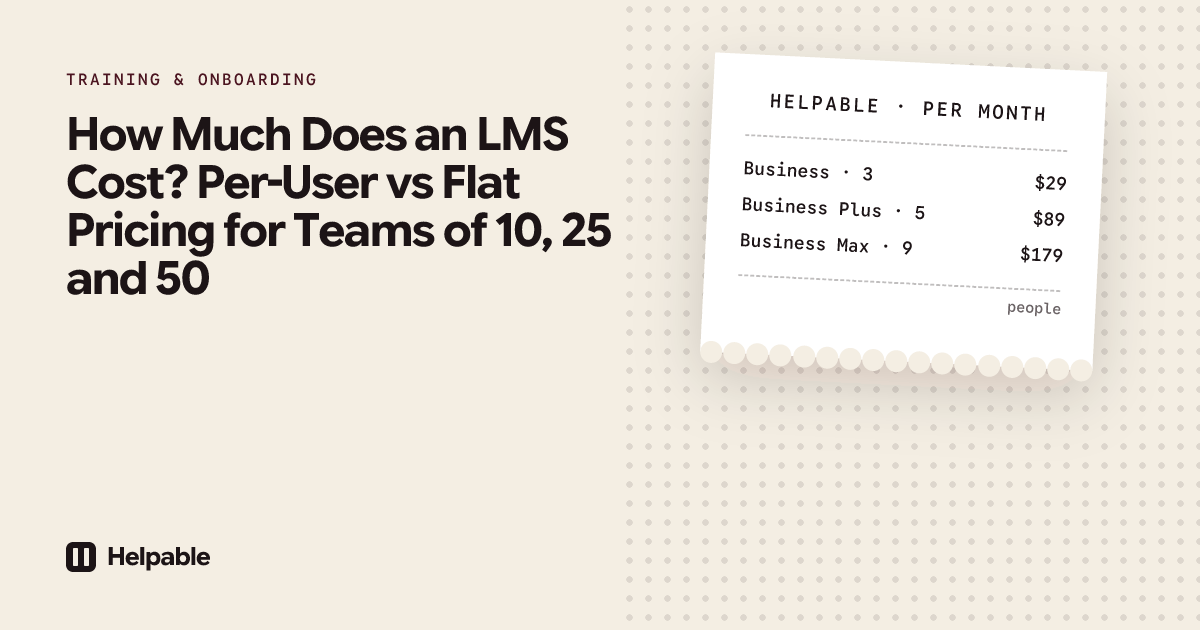
LMS prices come in several models: per active user, per registered user, flat plans for a band of users, and custom quotes. Small teams get caught out by minimum user counts, annual contracts and paid add-ons. Our guide on how much an LMS costs works out what 10, 25 and 50 people pay under each model.
3. Easy for employees, on their own phone
Many small teams have people who never sit at a desk: cleaners, technicians, kitchen staff, carers, shop staff. If training only works well on a laptop, those people will not finish it. Check that lessons open in a phone browser, that videos play, that quizzes are easy to tap, and that people continue where they stopped.
4. Training built from your own content, with help from AI
Generic training content rarely matches how your company works. Good AI support turns your own handbook, procedures and documents into a first draft of a training that you then check and adjust. Ask what the AI is based on, whether you can review everything before it goes live, and how AI use is charged. See how this works in training with AI.
5. Procedures and knowledge in the same place
People learn something once, then forget the details or the procedure changes. A training that links to the current procedure and a knowledge base people can search afterwards keeps learning and daily work in line. If your LMS lives apart from your procedures and handbook, you maintain the same content in two or three places.
6. Proof and reports you can read
You should see at a glance who is ready, who is late and where people struggle. Look for progress per person and per team, quiz scores, certificates, and an export you can hand to an auditor or open in a spreadsheet.
The six criteria at a glance
| Criterion | Question to ask in the trial | Warning sign |
|---|---|---|
| Time to first training | Can I publish a real training today? | A setup project or onboarding call is required before you can start |
| Pricing model | What will we pay at 10, 25 and 50 people? | Minimum users, annual lock-in, key features as paid add-ons |
| Employee ease | Can someone finish a lesson on their phone in 5 minutes? | App install required, small buttons, lost progress |
| Own content and AI | Can I turn my own documents into a training? | AI that writes generic text with no link to your sources |
| Procedures and knowledge | Can people look things up after the training? | Training and procedures live in separate tools |
| Proof and reports | Can I see who finished, and export it? | Reports that need a specialist to read |
What can a small business skip?
Many LMS feature lists are written for large organizations. These features add cost and setup time, and most teams of 5 to 50 never need them.
| Feature | What it is | When you do need it |
|---|---|---|
| SCORM and xAPI | Standards to move e-learning packages between systems and record detailed learning data | You buy ready-made e-learning packages from outside providers, or a client requires them |
| Learning record store (LRS) | A separate database for xAPI learning data | You run training across many systems and want one record |
| Heavy gamification | Points, badges and leaderboards | Large groups of learners where competition helps; small teams usually do fine with clear deadlines |
| HR system (HRIS) integration | Syncs employees and records with your HR or payroll system | You have hundreds of people joining and leaving |
| Single sign-on (SSO) | One company login for all tools | Your IT policy requires it |
| Course selling and e-commerce | Sell training to people outside your company | Training is a product you sell |
If one of these is a hard requirement for you, filter on it first. It rules out many tools quickly.
What is the easiest LMS to use?
The easiest LMS is the one your least technical employee can use on day one with no help. Ease is personal to your team, so test it yourself. Two simple measures work well:
- For the manager: how many minutes from sign-up to a published training with one lesson and a quiz?
- For the employee: how many taps from opening the invitation to finishing the first lesson on a phone?
Ask your least technical colleague to try it while you watch. If they get stuck, others will too.
Which type of LMS fits your team?
The market splits into a few types of tools. Knowing the type narrows your shortlist faster than comparing feature lists.
| Type of tool | Built for | Fits a small team when | Watch out for |
|---|---|---|---|
| School LMS | Classes, semesters, grades | You train a handful of people once | Few workplace features, such as deadlines per role and proof for audits |
| Enterprise LMS suite | Large companies with a training department | You have strict compliance needs and an admin to run it | Setup projects, annual contracts, more features than you will use |
| LMS inside an HR suite | Companies that already use that HR platform | You already pay for the HR platform | Training features vary; you need the whole suite |
| Course-selling platform | Selling training to customers | You sell training | Built around buyers and checkout pages |
| Business LMS for small and mid-size teams | Employee training at moderate scale | Training is your main need | Procedures and a knowledge base usually live in another tool |
| Training plus knowledge and procedures | Small teams that want one place for how work is done | You want people to learn, follow and look up the same content | Check it covers the LMS basics: quizzes, certificates, reports |
Comparing with a specific tool? See how Helpable compares with TalentLMS, or read about training management software for the admin side of training.
How do you test an LMS in 30 minutes?
Run this same test in every tool on your shortlist, with the same material, so you compare like with like. Have one real procedure or handbook section ready.
| Minutes | What you do | What you learn |
|---|---|---|
| 0 to 5 | Sign up and create your workspace | Is a credit card, sales call or setup project needed? |
| 5 to 12 | Build a training from your own document, using a template or AI | How fast can you get real content in? |
| 12 to 17 | Add a quiz with three questions and a pass mark | Is checking understanding simple? |
| 17 to 20 | Preview it as an employee, then publish | Can you see what your team will see? |
| 20 to 25 | Invite one colleague and assign it with a deadline; they open it on their phone | Does it work on a phone with no app install? |
| 25 to 30 | Open the progress report and try the export | Can you see who is done, and get proof out? |
Score each step from 0 (did not work) to 2 (easy). A tool below 8 out of 12 will likely feel like work every week. Add the price for your team size, and you have a decision table.
For a longer list of features to compare, use our LMS features checklist. Want to start with no budget at all? Read what you really get with a free LMS for small business.
A worked example: an installation company with 8 technicians
Take an installation company with eight technicians, a planner and the owner. Technicians work alone at client sites and use their phones in the van. A new technician joins every few months. Right now, onboarding means a week of riding along with a senior colleague, and safety instructions sit in a folder at the office.
The owner sets three goals:
- New technicians know the safety steps and the standard installation before they work alone.
- When a procedure changes, every technician sees the new version.
- When a client or inspector asks, the company can show who was trained on what.
Phone use and procedures get the most weight, because the work happens on site. SCORM, SSO and HR integration are crossed off. They shortlist three types of tools: a business LMS, the training module of the HR package they are considering, and a tool that combines training with procedures and a knowledge base.
They run the 30-minute test in each, with the same document: the safety procedure for working on a roof. In this example, here is how it plays out:
- Business LMS: strong quizzes and reports. The procedure has to be copied into a lesson, so it will need updating in two places.
- HR package module: fine for assigning training, with simpler content tools, and it only makes sense if they buy the full HR package.
- Training plus procedures: the procedure becomes a lesson that always shows the latest version, with photos the technicians can open on site. A quiz and certificate close the training.
They choose the third type, build one onboarding training with five procedures, a quiz and a certificate, and assign it to the next new hire with a two-week deadline.
Where does Helpable fit?
Helpable is training software and an LMS for teams of 5 to 50 people, with your knowledge base and procedures in the same tool. Plans start at $29 a month for up to 3 team members, with a 14-day free trial and no credit card needed.
Here is how Helpable answers the six criteria:
- Time to first training: start from one of six training templates, or let AI draft a training from your own articles, procedures and documents. You preview it as an employee before you publish.
- Pricing model: a fixed monthly price per plan that includes a set number of team members, with AI credits included. Plans and add-ons are on the pricing page.
- Employee ease: works in the browser on phone, tablet and laptop, with no app to install. People continue where they stopped.
- Own content and AI: upload handbooks and policies (PDF, Word and more) and get drafts a manager reviews. AI turns your content into lessons and quiz questions.
- Procedures and knowledge: step-by-step procedures with photos, a knowledge base with version history, and read confirmations per version. Answers, the AI search, replies from your own knowledge with a link to the source.
- Proof and reports: quizzes, certificates, progress per person and team, and reports you can export as CSV for Excel or Google Sheets.
A few features depend on the plan. Automatic assignment for new members and teams starts on Business Plus. Recurring refresher training and certificates that expire are on Business Max.
When Helpable is the right fit, and when it is not
Helpable is a good fit when:
- you have 5 to 50 people and no training department;
- you want training, procedures and a knowledge base in one place;
- your team works on phones, in shifts or on location;
- you want to build training from your own documents with AI help;
- you want your data stored in the EU.
Helpable is not the right fit when:
- you need to import or export SCORM or xAPI packages;
- you want to sell training to people outside your company;
- you are a school or university;
- you need a free plan for the long term (Helpable has a free trial only);
- you need single sign-on, HR system integration or a native mobile app.
FAQ
What is the best LMS for a small business?
The best LMS for a small business is the one your team will use every week. For most teams of 5 to 50, that means quick setup, a predictable price, easy use on a phone, training built from your own procedures, and clear reports. Test two or three tools with the same 30-minute plan and compare the scores.
What is the easiest LMS to use?
The one where a manager publishes a training in minutes and an employee finishes a lesson on a phone with no help. Test it with your least technical colleague during a free trial.
How much does an LMS cost for a small business?
It depends on the pricing model: per active user, per registered user, flat plans or custom quotes. Check minimum user counts, contract length and add-ons. Our LMS cost guide works it out for 10, 25 and 50 people.
Do small businesses need SCORM?
Usually not. SCORM matters when you buy ready-made e-learning packages from outside providers or a client requires it. If you build training from your own procedures and knowledge, you can skip it. Helpable does not support SCORM.
How long does it take to set up an LMS?
For a small team, a first training can be live on the first day if the tool has templates or AI help and you have a document to start from. Plan a few weeks to move your main onboarding and procedures into it.
Does Helpable have a free plan?
No. Helpable has a 14-day free trial with no credit card needed. After that, plans start at $29 a month.
Try the 30-minute test in Helpable
Take one real procedure, start a free trial and follow the test plan above. In half an hour you will know whether Helpable fits your team. Start your 14-day free trial or compare the plans.
Last checked: October 16, 2026.